
Manual expense management is a silent productivity killer, costing companies an average of $58 to process a single report. As you grow, the friction stacks up fast: lost receipts, late reimbursements, back-and-forth approvals, and finance teams stuck doing data entry instead of steering the business.
The good news: recent advancements in AI and Optical Character Recognition (OCR) make expense report automation practical for small teams, not just enterprises. You can move from spreadsheets to clean digital workflows in days, not months, as long as you implement it in the right order.
This guide walks you through process auditing, software selection, and integration strategies so your finance ops run with less chaos and more control. For a broader look at the full expense lifecycle, see our guide on expense management automation.
Automation Readiness Checklist
Before you touch any software, make sure you can answer these basics. This is how you avoid buying a tool that nobody uses.
- Current workflow audit: Map how expenses move today from receipt to reimbursement, and write down where things slow down or break.
- Expense policy clarity: Document your rules in plain English so everyone submits the same way (and your software can enforce them).
- Accounting system inventory: Confirm where approved expenses must land (for example, QuickBooks or Xero) so you can plan integrations early.
- Feature requirements: List the must-haves like OCR, a mobile app, multi-currency, mileage, per diem, and project codes.
- Budget and ROI target: Set a monthly spend cap and a clear win condition (for example, "cut processing time by 50% within 60 days").
Tip: If you reimburse employees, also review IRS substantiation rules (receipts, dates, business purpose). IRS guidance in Publication 463 is a solid baseline for what you should capture and store.
How Expense Report Automation Works
To understand why you should automate, you need to understand what modern systems actually do behind the scenes. Modern systems go beyond simple forms and attachments; they provide workflows with real enforcement.
Most rely on AI-driven data extraction to turn a blurry receipt photo into structured data that flows into approvals, reimbursements, and your accounting system.
AI and OCR Data Capture
OCR reads text from images. AI then "understands" what the receipt means.
A good flow looks like this:
- Capture: An employee snaps a photo on mobile (or forwards an email receipt).
- Extract: OCR pulls text like vendor name, date, line items, tax, and total.
- Normalize: AI maps messy receipt formats into clean fields (merchant, category, currency).
- Verify (lightly): The employee confirms or edits a few fields instead of retyping everything.
This is where accuracy matters. If extraction is weak, your team ends up doing manual clean-up anyway.
If you're building something custom (for example, tying expenses to client projects, job sites, or service tickets), QuantumByte's approach can help. You can prototype an internal expense workflow from natural language, then bring in a dev team only for the pieces AI tools cannot cover today. That hybrid model is often the fastest path to a workflow that fits how you actually operate.
Automated Policy Enforcement
Automation gets powerful when rules fire immediately.
Instead of discovering issues weeks later in a painful audit, the system can flag them at submission time:
- Hard stops: "Hotel receipt required" or "Missing project code."
- Soft warnings: "Meal is above the daily limit. Add a note."
- Auto-coding: "Uber receipts go to Travel: Ground Transport."
You end up with fewer awkward conversations, faster approvals, and cleaner books.
5 Steps to Automate Your Expense Reports
Implementing expense report automation works best as a structured rollout. Your goal is adoption, compliance, and clean data. The tool is just the vehicle.
1. Audit Your Current Process
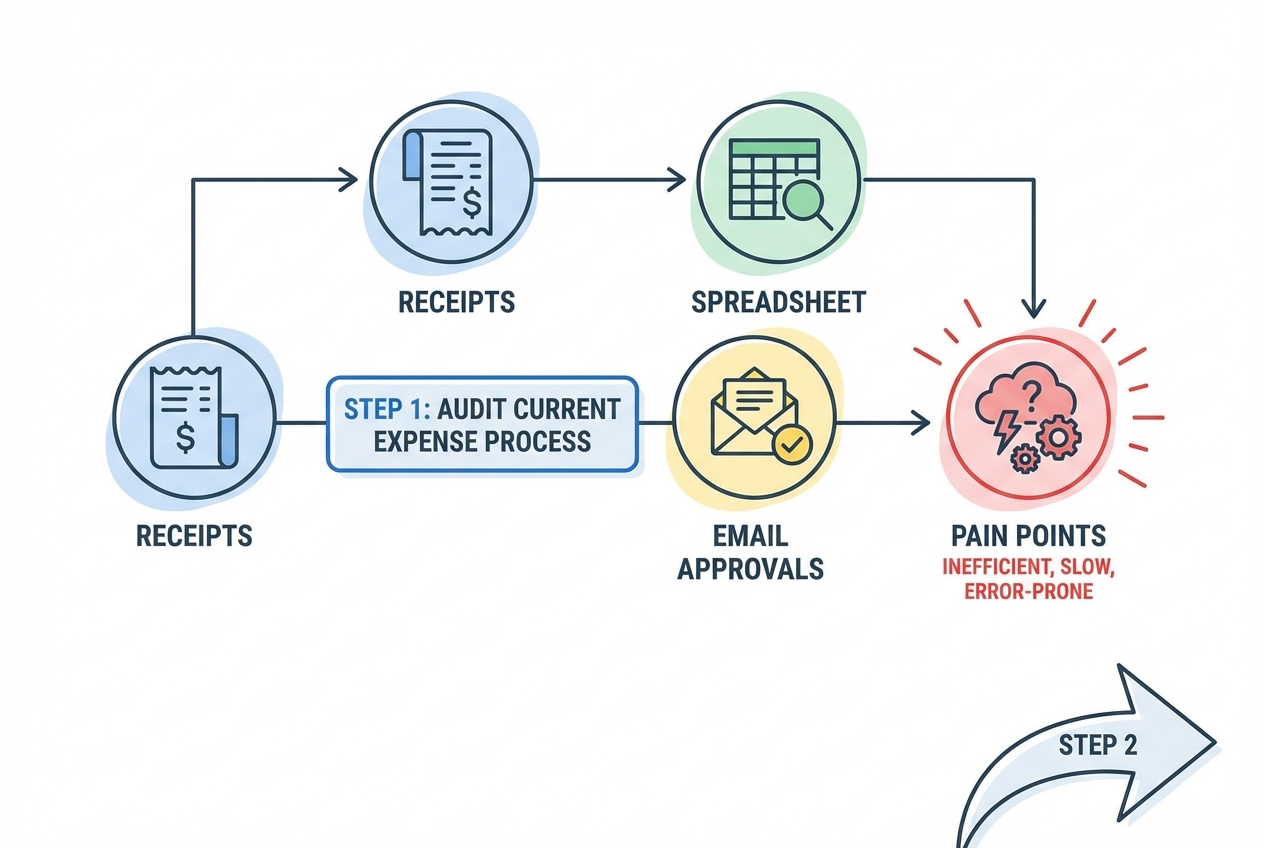
Before choosing a platform, document every touchpoint in your current system. When you find gaps early, you avoid automating a broken workflow.
What to map:
- Who submits: Employees, contractors, or both.
- What they submit: Receipts, mileage, per diem, subscriptions, client expenses.
- Where receipts live: Email inboxes, paper, shared drives, personal phones.
- Who approves: Manager, department lead, finance, CFO.
- What breaks: Late submissions, missing receipts, unclear categories, reimbursement delays.
What you're looking for:
- Bottlenecks: Where expenses pile up waiting for one person.
- Rework loops: Common reasons expenses bounce back.
- Data gaps: Fields you need for reporting but do not capture today (project, client, job code).
2. Standardize Your Expense Policy
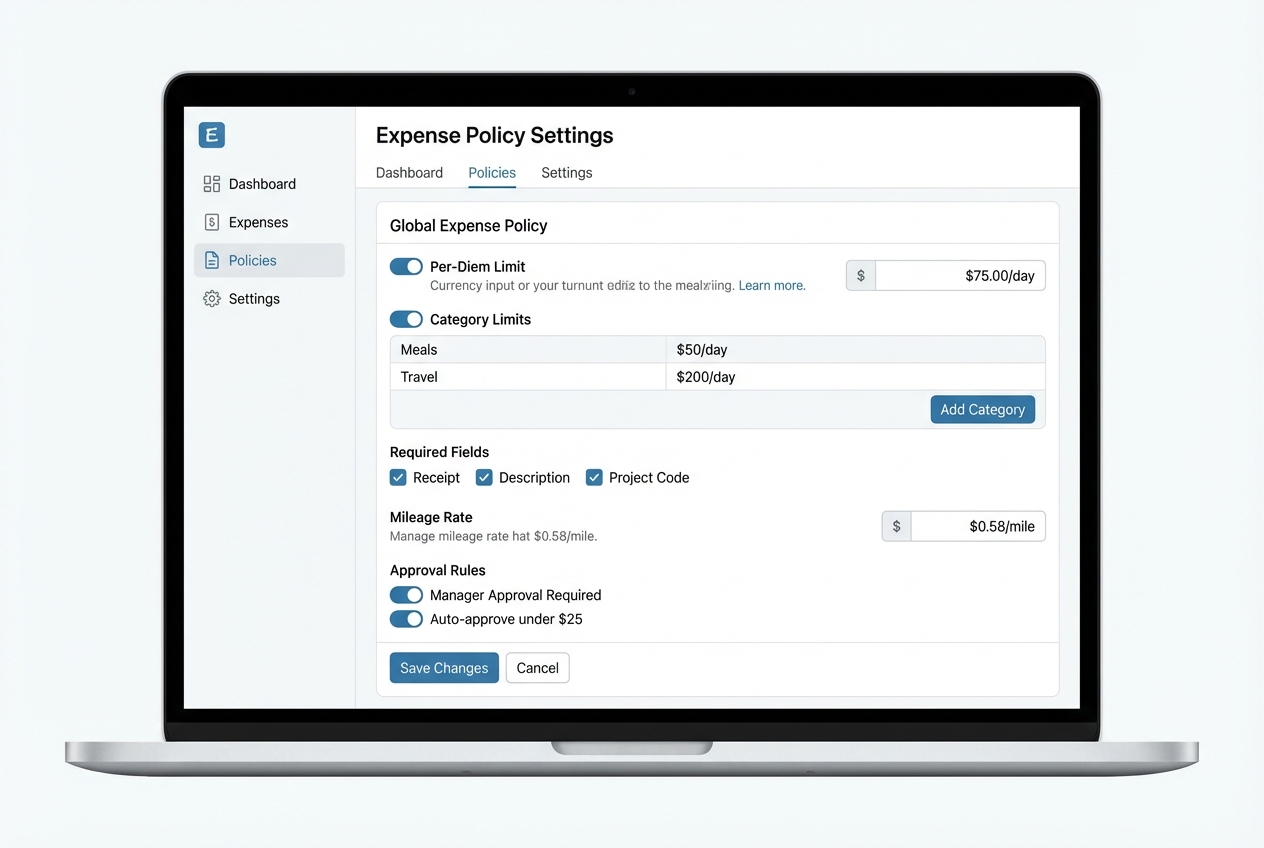
Automation only works if the rules are clear. If your policy lives in someone's head, your software cannot enforce it. For a deeper dive into codifying your rules, see our guide on expense policy automation.
Keep the policy short. Then make it precise.
Start with the rules that cause the most friction:
- Receipts: What needs a receipt, and what can be "no receipt" with a note?
- Limits: Meals per day, hotel caps, mileage rate, client entertainment rules.
- Timing: Submission deadline (example: within 10 days of the expense).
- Coding: Required fields like department, project, client, or location.
If you reimburse employees, align your policy with accountable plan record keeping. Refer to the aforementioned IRS Publication 463 as a helpful reference.
3. Select an Expense Report Automation Platform
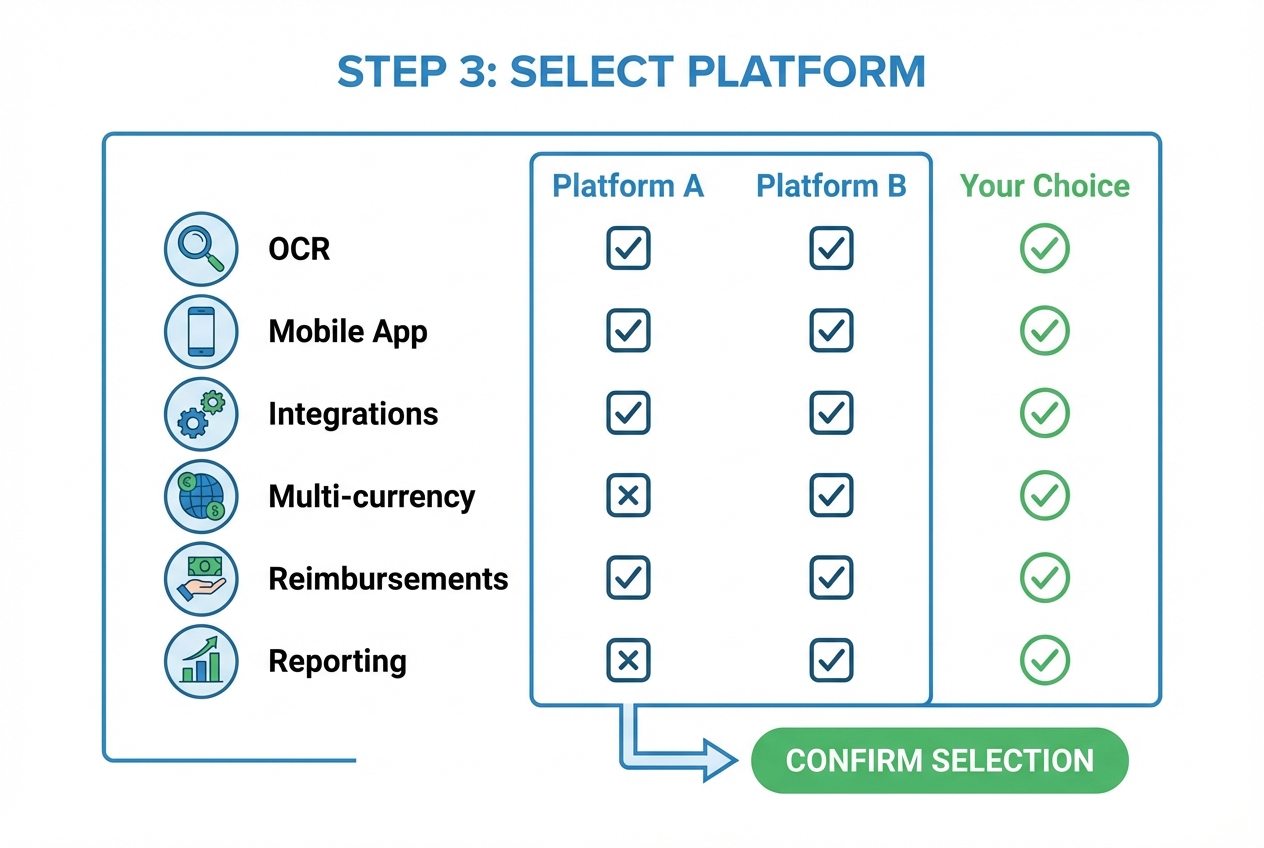
Pick a tool that balances employee ease with finance control. Adoption is everything. If submitting an expense feels annoying, people will work around it.
Non-negotiables to look for:
- Mobile-first: People submit on the go, not at the end of the month.
- Strong OCR: Less correction means less resistance.
- Policy rules: Warnings and hard stops at submission time.
- Integrations: QuickBooks, Xero, NetSuite, and card feeds.
- Audit trail: Who submitted, who approved, what changed, and when.
Here's a practical way to decide what type of platform you need:
| Your reality | Best fit | Why it works |
|---|---|---|
| Small team, simple reimbursements | Lightweight expense app | Fast setup and low admin overhead. |
| You use corporate cards heavily | Card-first platform (with expense layer) | Auto-match card transactions with receipts for cleaner reconciliation. |
| Multi-entity, multi-currency, strict controls | Enterprise-grade expense tool | Advanced policy, approvals, and compliance features. |
| You need custom fields and unique workflows | Custom build or hybrid build | You can tie expenses to your exact business model (projects, job sites, service tickets). |
If you are a service business trying to scale, a common unlock is linking expenses to revenue. For example: every expense must map to a client or project, and your reports show margin by client automatically. That is where a custom workflow can pay off quickly.
4. Integrate Corporate Cards and Accounting Systems
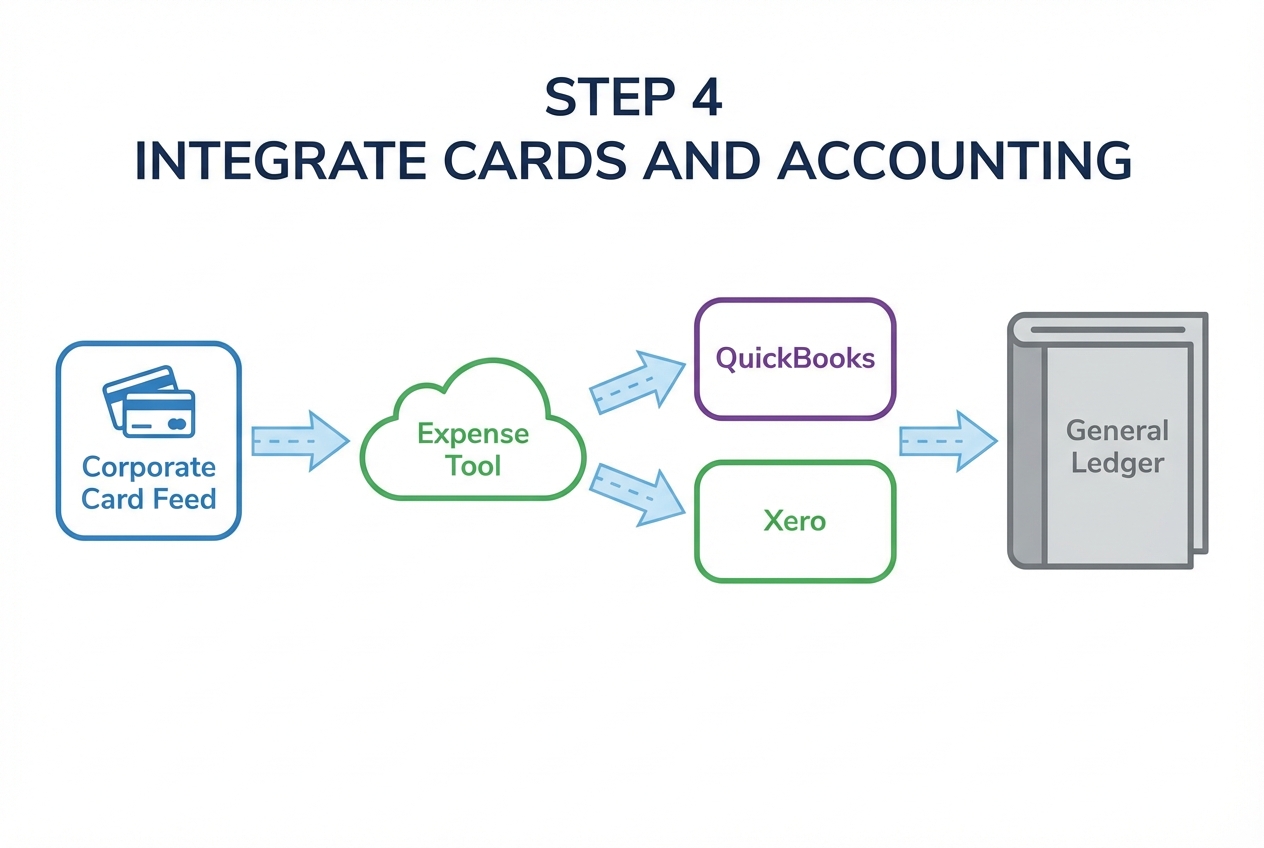
This step is where expense automation turns into a real operating system. For a detailed walkthrough of the card side, see our guide on corporate card reconciliation automation.
Corporate card feeds reduce manual entry because transactions arrive automatically. Employees then attach receipts and add context.
Accounting integrations reduce double entry because approved expenses sync straight into your general ledger. This pairs well with broader accounting automation efforts.
What to set up:
- Card feeds: Connect corporate cards so transactions flow in daily.
- Expense categories: Map to your chart of accounts.
- Classes / locations / projects: If you use these in your accounting tool, map them here too.
- Attachments: Ensure receipts stay linked to transactions after sync.
If you are integrating with QuickBooks Online, Intuit's Attachable API documentation is a useful reference point for how receipt attachments are handled at the API level.
5. Build and Test Approval Workflows
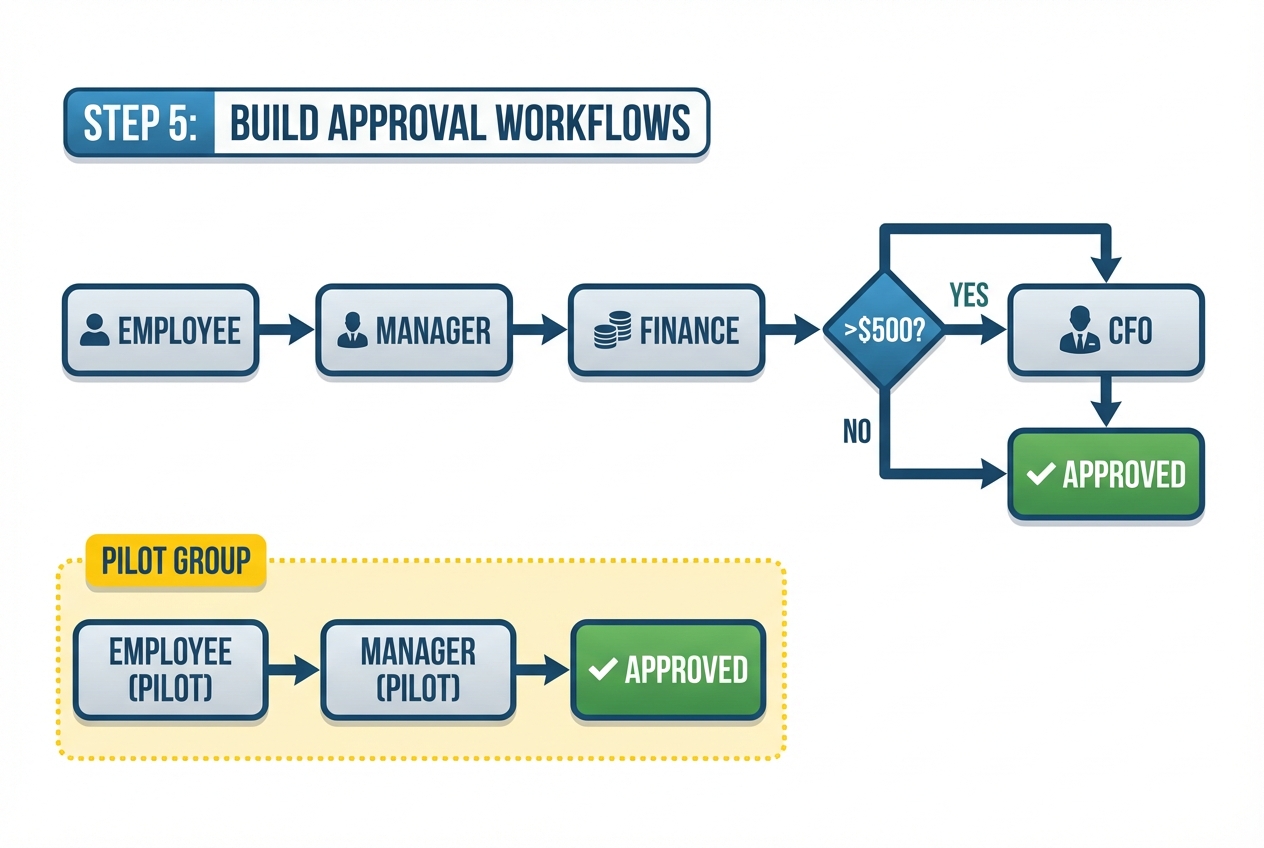
Approvals should feel invisible when everything is normal, and strict when something is risky.
Start with simple routing logic, then add layers only if you need them.
Examples you can implement quickly:
- Amount-based routing: Expenses over $500 go to the CFO.
- Category-based routing: Travel and client entertainment require finance review.
- Department routing: Marketing expenses go to the marketing lead first.
Roll this out with a pilot group (one department, 5 to 20 people). Give them a clear rule: submit expenses in real time for two weeks, then you gather feedback.
What to measure in the pilot:
- Submission time: How long does it take to submit one expense?
- Rejection reasons: What fields confuse people?
- Approval speed: Are managers a bottleneck?
- Reimbursement time: Is it actually faster?
Why Your Business Needs Expense Report Automation Now
This is bigger than "saving time." Expense automation gives you leverage. It turns messy admin into a system you can trust.
Real-Time Visibility into Spend
When expenses live in spreadsheets, you only see spend after the month ends.
With automation, finance can see pending spend before it hits the books. That means better forecasting and fewer surprises. This real-time visibility ties into broader financial reporting automation benefits.
Reducing Fraud and Duplicate Claims
Humans miss patterns. Software does not.
Many platforms use duplicate detection and fuzzy matching to catch:
- Same receipt submitted twice: The system compares key fields and images to stop double reimbursement.
- Same merchant and amount within a short window: This flags possible duplicates even when the receipt photo is cropped differently.
- Suspicious categories or out-of-policy patterns: You get earlier signals without needing a full manual audit.
You catch problems early, without turning your finance team into the "expense police."
Key Features of Effective Automation Software
When evaluating vendors, prioritize these non-negotiable features:
- Mobile Receipt Scanning: Your team should be able to snap a photo, submit in seconds, and move on with their day. The best systems also nudge users when a card transaction has no receipt attached.
- Direct Reimbursements: Built-in ACH reimbursements reduce back-and-forth with payroll and speed up repayment, which improves trust with employees.
- Custom Reporting: Dashboards should answer real questions like "spend by project," "spend by client," or "top categories this month," without exporting to spreadsheets every time.
Also take security seriously. Look for vendors that can clearly explain their controls and audits. SOC 2 is a common standard, built on the AICPA Trust Services Criteria.
Conclusion
Transitioning to expense report automation has evolved from a convenience into a competitive necessity. When you get it right, you reduce processing costs, tighten compliance, and give your team back hours every month.
Follow the steps in order: audit, standardize policy, choose the right platform, integrate cards and accounting, then build and test approvals. Once your expense workflow runs cleanly, it becomes a foundation for broader process automation across your business.
If you want to move fast and build a workflow that matches how you actually run the company, explore how QuantumByte can help.
Frequently Asked Questions
What is expense report automation?
It is the use of software to capture receipts, categorize spending, and route reports for approval without manual data entry.
If you want to go beyond a standard tool, QuantumByte can help you implement a workflow that fits your business model. That can mean custom fields, tighter policy rules, or connecting expenses to revenue-generating work so you see margin clearly.
How much does it cost to automate expense reports?
Software fees vary by vendor and features, but ROI is usually achieved within months by reducing the human cost of processing and catching non-compliant spend earlier.
A practical way to estimate ROI is:
- Current processing load: Monthly expense reports multiplied by your estimated internal cost per report (time + overhead).
- Automation costs: Subscription fees, implementation time, and any integration work.
- Recovered time: Hours saved for finance, approvers, and employees that you can redirect into revenue or customer work.
Can I automate expenses without a corporate card?
Yes. Most platforms support personal card purchases where employees upload receipts, add context, and receive automated reimbursements.
Corporate cards are helpful, but they are not a requirement.
Does automation integrate with QuickBooks?
Most leading expense report automation tools offer native, two-way sync with QuickBooks, Xero, and NetSuite.
If you have custom needs (like attaching receipts to specific transaction types or syncing custom dimensions), you may need a deeper integration. That is where an API-based approach helps.
Is automated expense reporting secure?
Top-tier providers use encryption, role-based access, and audited controls (often SOC 2). Still, you should verify:
- Data storage: Where your data sits and how it is segregated.
- Receipt and PII protection: How images and personal info are encrypted and access-controlled.
- Export and ownership: Whether you can export everything cleanly at any time.
- Offboarding: What happens to access and data when an employee leaves.

