
Manual data entry is the silent killer of small business growth. Every invoice you copy and paste, every "friendly reminder" you send, every bill you chase down for approval is time that never comes back.
The numbers make it hard to ignore. The average manual invoice can cost between $15 and $16 to process, while automation can cut that down to just $2 to $3 per document.
In an era where the average SMB wastes 30% of its potential revenue on inefficient workflows, mastering QuickBooks invoice automation becomes a financial necessity. It is one of the simplest ways to protect margin without hiring more admin.
This guide covers the full spectrum of QuickBooks automation, from native recurring billing and automated reminders to more advanced, AI-driven workflows for accounts payable. The goal is simple: help you get paid faster, stop drowning in vendor bills, and build a finance system that can scale.
What is QuickBooks Invoice Automation?
QuickBooks invoice automation refers to the use of built-in features and integrations to handle the creation, delivery, follow-up, and recording of invoices with minimal human effort.
It usually runs in two directions:
-
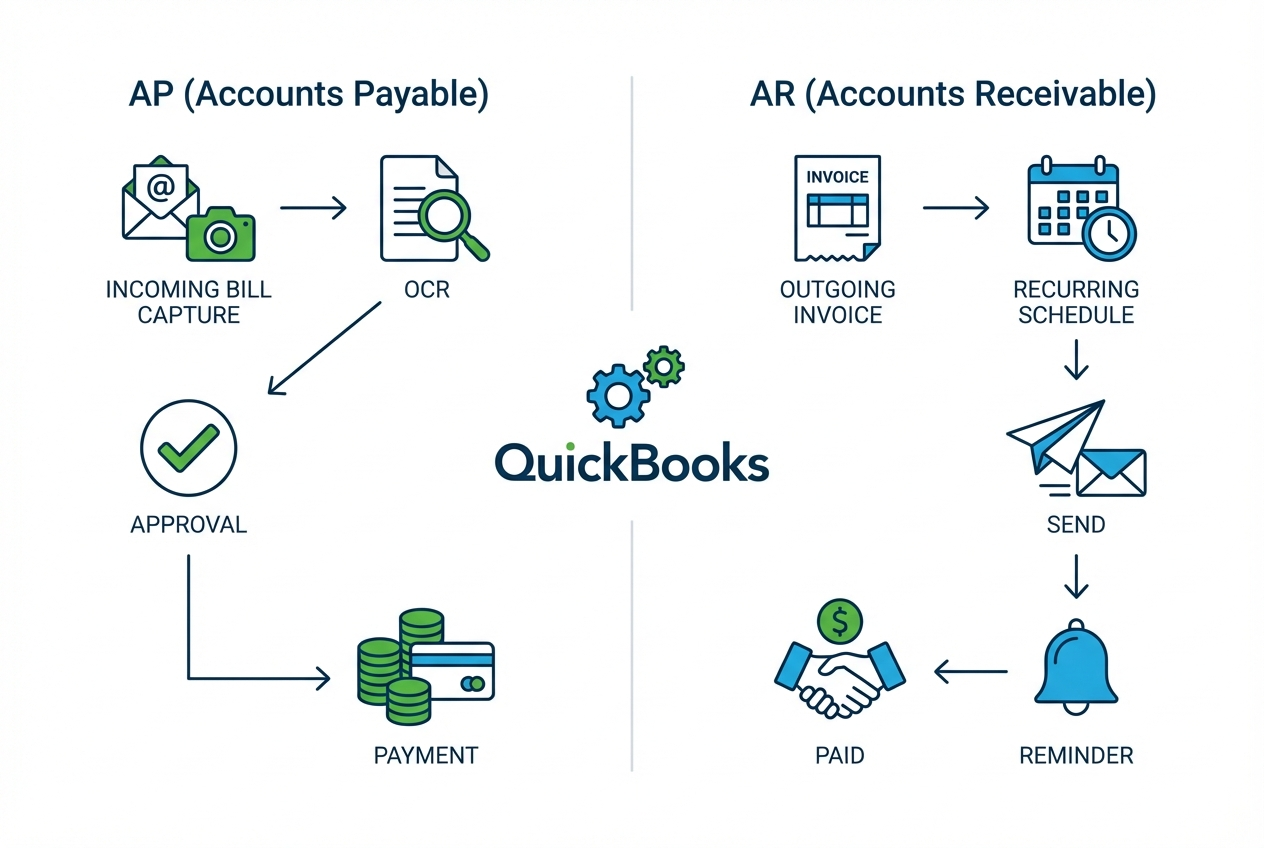
Accounts Receivable (AR): You automate invoices you send to customers, plus reminders and payment collection.
-
Accounts Payable (AP): You automate the intake, coding, approval, and payment of bills you receive from vendors.
When this is set up well, your accounting becomes "exception-based." That means the system does the routine work, and you only step in when something looks off (a duplicate vendor, an amount mismatch, a missing purchase order, and so on).
This shift is a core part of modern financial services automation, moving your team away from busywork and toward decisions that actually change outcomes.
The Financial Impact of Automating Your Invoicing
Automation pays off because it attacks four expensive problems at once: cost per invoice, cycle time, errors, and cash flow.
High-performing finance teams that embrace automation can process twice as many invoices per employee compared to manual teams.
Here is what that looks like in practice:
-
Cost savings: Moving from manual to automated processing can drive major reductions in processing cost per invoice. Thryv reports that many businesses see close to an 80% reduction when shifting from manual processing to automation.
-
Time efficiency: Automation cuts the back-and-forth that slows everything down (data entry, email trails, approval chasing). Your team stops being a human router.
-
Accuracy: Manual processes commonly produce avoidable errors (typos, wrong vendor, wrong category). Automation reduces this by extracting data consistently and applying rules.
-
Cash flow: QuickBooks highlights that users who enable automated invoice reminders get paid faster on average because fewer invoices slip through the cracks.
If you are scaling, this matters even more. More customers and more vendors should not automatically mean more admin. Automation is how you grow revenue without hiring a larger finance team.
How to Automate Outgoing Invoices (AR) in QuickBooks Online
For most businesses, the easiest win is on the AR side. You already know who you bill and when you bill them. The problem is consistency. Automation fixes that.
Setting Up Recurring Invoices
If you have clients on monthly retainers, subscriptions, or fixed service packages, manual invoicing is a waste of attention.
In QuickBooks Online, you can create recurring invoices through Recurring Transactions. You set:
-
Schedule: Choose weekly, monthly, yearly, or a custom cadence so invoices go out on time even when you are busy.
-
Start and end date: Define when the recurring series begins (and optionally stops) so billing stays aligned to the contract.
-
Creation method: Decide whether QuickBooks creates a draft for review or sends the invoice automatically with no extra clicks.
-
Delivery: Add customer email delivery so billing happens in the background, not in your inbox.
Done right, recurring invoices turn billing into a background process. This also pairs well with broader operations automation, especially if you are already building repeatable back-office systems like payroll workflow automation.
Practical tip: start with your most predictable revenue first. If 70% of your revenue comes from 10 recurring clients, automate those before anything else.
Enabling Automated Invoice Reminders
Late payments usually are not malicious. They are forgotten, buried, or stuck in an approval chain on your client’s side.
QuickBooks Online lets you enable automated reminders so you do not have to manually nudge people. You can configure:
-
Reminder timing: Set follow-ups for before the due date, on the due date, and after the due date so invoices do not quietly go stale.
-
Reminder frequency: Choose how often QuickBooks should retry (and when it should stop) so you stay persistent without annoying good clients.
-
Message templates: Write a few versions that match your tone, then let the system send them consistently.
Consistency is what changes results. Automated reminders turn follow-up into a repeatable routine that keeps cash moving.
Automating Accounts Payable (AP) and Incoming Bills
AP is where many businesses feel the most friction because bills arrive in different formats, through different channels, and with unclear ownership.
Manual AP is also slow. DocuClipper’s AP statistics roundup points to average processing timelines that stretch far longer than most owners expect.
The upside is that AP automation often delivers the strongest ROI because you cut both labor and leakage (duplicate payments, late fees, missed credits).
AI-Powered Bill Capture
QuickBooks Online includes a native feature commonly referred to as bill capture (often found under Receipts, Expenses, or related workflows depending on your plan and settings).
The idea is simple:
-
Ingest bills fast: Forward invoices to a QuickBooks intake email, upload PDFs, or snap a photo in the mobile app so nothing gets lost.
-
Extract key fields: QuickBooks uses OCR (Optical Character Recognition) to read vendor name, date, and amount so you stop retyping the basics.
-
Create drafts for review: It generates a draft transaction you can approve or correct, which shifts your work from data entry to decision-making.
This is where you start moving from manual entry to review-only accounting. If you pair bill capture with a consistent approval routine, it becomes the backbone of expense approval workflow optimization.
Streamlining Approval Workflows
QuickBooks is strong for basic bill entry and tracking. Where many teams hit a wall is approval routing.
Real businesses need conditions like:
-
Manager threshold approvals: Route bills over $5,000 to a manager so large spend never slips through on autopilot.
-
Department ownership: Send marketing expenses to the marketing owner (not accounting) so the right person answers "is this valid?"
-
Contract and renewal checks: Flag software renewals for contract review so you do not pay for tools you no longer use.
-
Vendor compliance gates: Require tax forms or vendor onboarding steps before payments go out, which reduces risk and cleanup later.
When approvals are not structured, you get bottlenecks, rushed decisions, and inconsistent categorization. That is how budgets drift.
- Audit regularly: Review categories, rules, and edge cases monthly. Tie this back to your reporting so automation improves, not drifts. Your budget vs actual automation review is the perfect checkpoint.
Advanced QuickBooks Invoice Automation with AI and Zapier
Native QuickBooks automation is a great starting point. But it is not always enough, especially when your data lives in more than one system.
That is where integrations and custom workflow layers come in.
Zapier Integrations (When You Need Systems to Talk)
Zapier is a popular connector that triggers actions across tools. In plain English, it helps your apps hand off tasks automatically.
Common QuickBooks automations using Zapier-style connectors include:
-
CRM to invoice: When a deal is marked "Closed/Won" in your CRM, create a QuickBooks invoice automatically so billing starts the same day the sale closes.
-
E-commerce to invoice: When a customer completes checkout, generate an invoice or sales receipt in QuickBooks so revenue is recorded without manual imports.
-
Form to customer record: When someone fills out an onboarding form, create or update their customer profile so you prevent billing delays and reduce duplicate records.
-
Project milestone billing: When a project moves to a milestone stage (for example "Design approved" or "Go-live complete"), auto-generate a progress invoice tied to that milestone.
-
Time tracking to invoice: When a contractor logs approved hours in a time tracking tool, push billable hours into a draft invoice so you stop rebuilding invoices line-by-line.
-
Failed payment recovery: When an autopay fails in your payments tool, trigger a QuickBooks reminder sequence or create a task in your helpdesk so it gets handled quickly.
-
Slack or email alerts for exceptions: When an invoice is overdue past a threshold, send an alert to a shared channel so the right person sees it without digging through reports.
The value is speed and consistency. The risk is mess. If your data naming is inconsistent, you can create duplicate customers and reconciliation headaches.
A simple safeguard: define one "system of record" for customer names (usually your CRM) and keep a short naming standard everyone follows.
Enterprise-Grade AI (When You Need Logic, Not Just Triggers)
Triggers are helpful. But they do not solve complex finance workflows where accuracy depends on context.
At scale, you need logic and enforcement, not only automation.
For example, a stronger system can:
-
Match across systems: Tie invoices to shipping records, contracts, or time logs before posting revenue so you only bill what was delivered.
-
Detect anomalies: Flag unusual vendor charges compared to past months so you catch overbilling and surprise renewals early.
-
Enforce approvals: Apply multi-step approvals based on department, project, and thresholds so spend stays controlled without slowing the team down.
-
Route exceptions with context: Send the right issue to the right person with supporting detail so exceptions get resolved quickly.
This is the type of workflow QuantumByte builds: AI-governed operating networks that integrate directly with accounting systems, turning fragmented tasks into a single flow.
If you are at the stage where QuickBooks is doing the basics but your workflow still feels fragile, you can map your automation plan in a few minutes using QuantumByte's AI builder.
Quick Comparison: Native vs Integrations vs Custom AI
| Approach | Best for | Strengths | Trade-offs |
|---|---|---|---|
| QuickBooks native automation | Solopreneurs and small teams starting automation | Recurring invoices, reminders, basic bill capture, fast setup | Limited approval routing and conditional logic |
| Third-party connectors (Zapier-style) | Teams with multiple tools (CRM, e-commerce, forms) | Connects systems quickly, reduces double entry | Can create messy data if naming and rules are inconsistent |
| Custom AI workflows | Growing businesses that need controls and accuracy at scale | Multi-step approvals, exception handling, matching, policy enforcement | Requires upfront design and build, best when you have repeatable volume |
Common Invoicing Bottlenecks (and the Automations That Remove Them)
Most invoicing problems are predictable. They show up as the same friction points, month after month.
-
Invoices go out late: This usually happens when billing depends on someone remembering to do it. Recurring invoices and CRM-to-invoice automations remove the human dependency.
-
Clients dispute line items: Disputes often come from vague descriptions or missing backup (timesheets, deliverables, shipping). Use templates for consistent line items, and connect time tracking or fulfillment data before the invoice is sent.
-
Bills sit unapproved: Approval chains break when ownership is unclear. Set routing rules (thresholds, departments) and send exception alerts so the workflow keeps moving.
-
Books lag behind reality: When receipts and bills pile up, your numbers stop being useful. Mobile capture plus a weekly review cadence keeps QuickBooks close to real time.
Fix these four, and you will feel the difference in both cash flow and mental bandwidth.
Best Practices for Transitioning to Automated Invoicing
Automation works best when you treat it like a rollout, not a switch.
-
Standardize your data: Customer and vendor names should match across systems. If your CRM says "Acme Co." and QuickBooks says "ACME Company," automation may create duplicates and confuse reporting.
-
Start small: Automate your five most frequent recurring invoices first. Then expand to reminders. Then move into AP intake and approvals.
-
Audit regularly: Review categories, rules, and edge cases monthly. Tie this back to your reporting so automation improves, not drifts.
-
Use mobile tools: Train your team to capture receipts and bills at the moment they happen. This prevents the "shoebox full of receipts" problem and keeps your books current.
-
Design for exceptions: Decide what the system should do when it is unsure. For example, "If vendor is unknown, route to admin," or "If amount is above threshold, require approval." This is how you keep speed without sacrificing control.
Scaling Your Financial Operations
QuickBooks invoice automation is a direct path to scale because it removes bottlenecks that grow with volume.
When you reduce the cost of processing invoices and bills, you do more than cut overhead. You unlock capacity. That capacity becomes new client work, better service, or simply fewer late nights.
As you grow, you will likely outgrow native workflows in two places first:
-
approvals that need real logic
-
reconciliation that depends on matching across systems (orders, fulfillment, contracts, time tracking)
That is usually your signal to add a stronger workflow layer, with clearer rules, better exception handling, and tighter controls.
Wrap-up: Turn Billing Into a System That Runs Without You
QuickBooks invoice automation helps you reclaim time, reduce errors, and tighten cash flow. You saw how to automate AR with recurring invoices and reminders, how to reduce AP effort with bill capture, and how to level up with integrations and AI when native features hit their ceiling.
The bigger win is operational reliability. Your billing stops depending on your memory, your inbox, or whoever happens to be available that day.
Frequently Asked Questions
Can you automate invoices in QuickBooks Desktop?
Yes, but it is more limited than QuickBooks Online. You can set up recurring memorized transactions, but advanced bill capture and modern approval workflows often require third-party tools.
How do I set up recurring invoices in QuickBooks?
In QuickBooks Online, select the Settings gear icon, then Recurring Transactions, then New. Choose Invoice as the transaction type and set the schedule for automatic creation and (optionally) automatic sending.
Is there a free way to automate QuickBooks invoices?
Many automation features are included with QuickBooks Online plans, such as recurring invoices and basic reminders. More advanced workflows (multi-step approvals, cross-system matching) usually require paid third-party tools or custom builds.
How does QuickBooks automate bills and invoices?
It combines scheduling (recurring transactions), messaging (automatic reminders), and document extraction (OCR bill capture) to reduce manual entry and follow-up.
How can I handle complex invoice approval workflows in QuickBooks?
QuickBooks Online has limited approval routing. If you need rules based on department, threshold, project, or multi-step signoff, you will typically need a dedicated approvals tool or a custom workflow layer that sits alongside QuickBooks.