If you want an AI assistant that lives where you already work (WhatsApp, Telegram, Slack, Discord) but you do not want to hand your data to a random chatbot, you need a practical setup you can control. This guide shows how to use OpenClaw to run an agent through your own gateway, connect real channels, and make it useful with tools, not just talk.
How to use OpenClaw without guesswork
OpenClaw is easiest when you treat it like a small system, not a single app.
Your goal in the first hour is simple:
- Get the Gateway running: You want the control plane up so you can configure everything from one place.
- Connect one channel: Pick one chat app first and make sure messages flow end to end.
- Choose a model: Local models are great for control; cloud models can be convenient.
- Add one real workflow: A tool-backed task like "create a ticket" is where OpenClaw becomes valuable.
The official docs are the source of truth. This article turns that into a clear, repeatable path.
What OpenClaw is and what it is not
OpenClaw is described as an "Any OS gateway" for AI agents across chat platforms, built around a Gateway process and a browser-based Control UI (Control User Interface)
What to remember:
- Gateway: The Gateway is the single source of truth for sessions, routing, and channel connections. This is what you keep running.
- Control UI: A browser dashboard where you manage chat, configuration, sessions, and nodes. This is how you stop flying blind.
- Agent runtime: The part that actually reasons, calls tools, and writes back to you.
What OpenClaw is not:
- Not just a chatbot: If all you need is a web chat box, OpenClaw is overkill.
- Not a magic automation engine: It still needs clear instructions, safe permissions, and tools that do something real.
If you want the high-level "why" behind building software this way, our manifesto is worth a skim because it maps to the same idea: domain experts should be able to ship systems, not just ideas.
How OpenClaw works
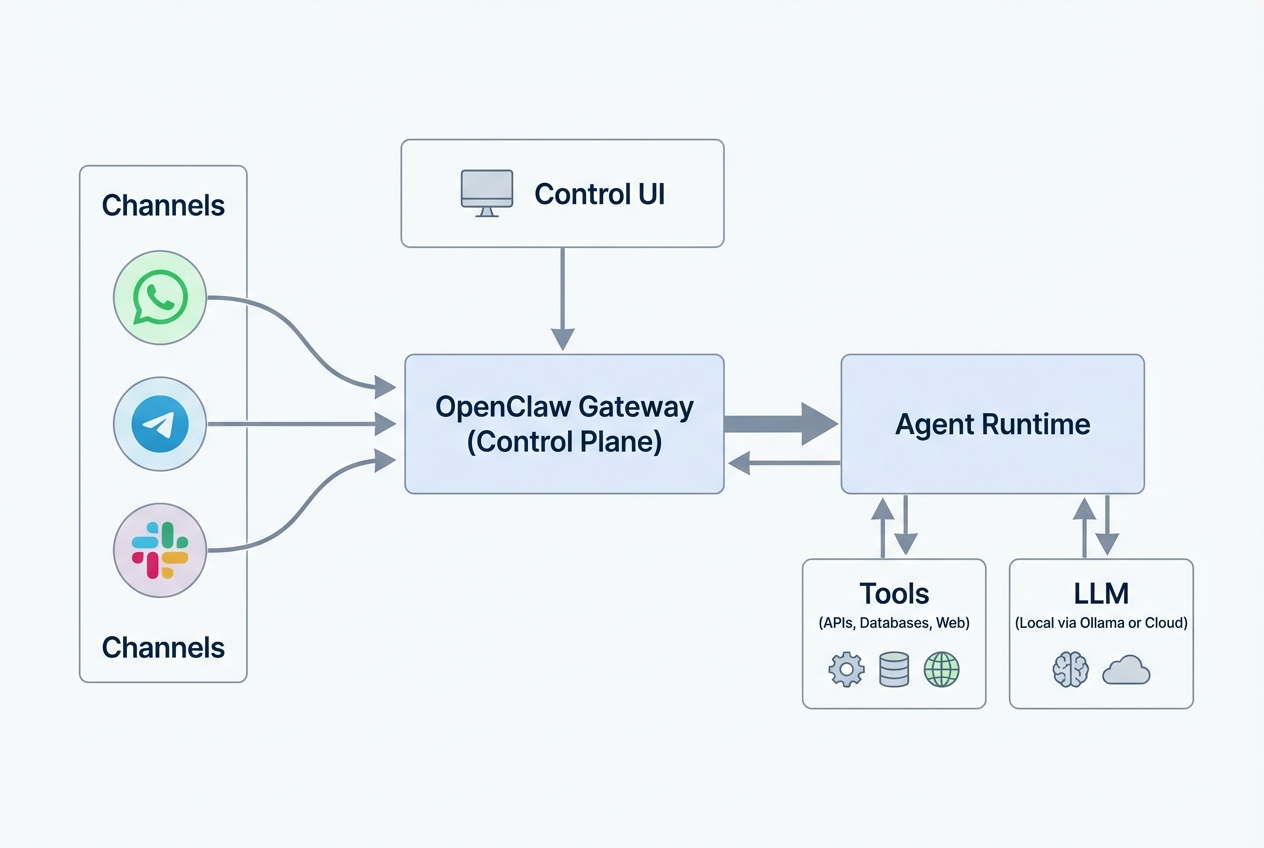
A clean mental model helps you debug fast:
- Message the assistant in a channel: You type in Telegram, Slack, Discord, WhatsApp, or another supported chat.
- Forward the message into the Gateway: The channel connector routes it into the OpenClaw Gateway.
- Let the agent runtime decide: The agent reads the message, pulls context, and chooses an action.
- Answer or call tools: The agent either replies directly or calls tools (APIs, databases, web actions) to do real work.
- Return the response to the same channel: The reply flows back through the Gateway to the original chat.
The "Gateway first" design is a feature, not a detail. It means you can add channels and tools without building a separate bot for each one.
What you need before you install
Do this upfront and you will save yourself an afternoon.
- Node.js 22 or later: OpenClaw’s recommended install path assumes Node 22+.
- A supported OS setup: macOS and Linux are straightforward. On Windows, OpenClaw’s own guidance is to use Windows Subsystem for Linux 2 (WSL2), and it is strongly recommended.
- At least one channel account: WhatsApp, Telegram, Slack, Discord, iMessage, and others are supported, but start with one.
- A model plan: Decide whether you want a local model via Ollama or a hosted model.
- A first job for the agent: Pick one workflow you want to automate. Example: create a support ticket, summarize daily messages, or update a CRM (Customer Relationship Management) field.
Install and onboard OpenClaw
The fastest stable path is the CLI (command-line interface) wizard.
1) Install OpenClaw globally
From a terminal:
npm install -g openclaw@latest
This is the install command shown in the official OpenClaw docs.
2) Run the onboarding wizard
This sets up the daemon (background service) and base configuration:
openclaw onboard --install-daemon
This is the recommended onboarding command in both the OpenClaw docs and the GitHub README.
What you should expect:
- Guided setup: The wizard walks you through the initial configuration so you are not guessing your way through the basics.
- Gateway running: You should finish with the Gateway up and staying running as a background service.
- Control UI access: You should be able to reach the browser dashboard to manage sessions, channels, and settings.
3) Open the Control UI
By default, the docs point to a local dashboard URL on port 18789:
- Dashboard URL: http://127.0.0.1:18789/
If you cannot reach it, you are not stuck. It usually means one of these:
- Gateway not running: Start or restart the Gateway service, then refresh the page.
- Port already in use: Another process may already be bound to 18789, so the UI cannot start on that port.
- Firewall blocking local access: A local security rule can block loopback access, even on your own machine.
Connect your first chat channel
Channel setup is where most people overcomplicate things. Aim for one channel that works perfectly, then expand to the rest.
A common path in the OpenClaw docs is:
openclaw channels login
Then you authenticate or pair the channel you want to use (WhatsApp pairing is called out in the OpenClaw docs).
Practical tips:
- Start with your lowest-risk channel: For example, a private Telegram chat instead of your company Slack.
- Keep the first agent scope tight: "Answer questions about my product docs" is safer than "touch my billing system."
- Confirm round-trip messaging: Send a test message, see it in the Control UI, get a reply back in the channel.
Once you have that loop, you are ready to add intelligence.
Pick your model, including Ollama
OpenClaw can sit on top of different model setups. If you want local control, Ollama is a clean route.
Use Ollama for a local-first setup
Ollama’s OpenClaw integration doc lists this quick setup step:
ollama launch openclaw
It also notes that ollama launch clawdbot is an alias, based on a previous name.
A key requirement from that same source:
- Context window: The recommendation is at least 64k tokens.
And it provides explicit examples of recommended models:
- qwen3-coder: Listed as a recommended model in Ollama’s OpenClaw integration guide.
- glm-4.7: Listed as a recommended model in Ollama’s OpenClaw integration guide.
- gpt-oss:20b: Listed as a recommended model in Ollama’s OpenClaw integration guide.
- gpt-oss:120b: Listed as a recommended model in Ollama’s OpenClaw integration guide.
Local vs cloud model choice
Use this rule of thumb:
- Local model: Better when you want control, a predictable environment, and fewer external dependencies.
- Cloud model: Better when you want convenience, fast setup, or higher-end reasoning without tuning a local stack.
If you are building something you will sell, you may end up using both. Local for development and testing. Cloud for certain premium tasks.
Make OpenClaw actually useful with tools and workflows
A talking agent is nice. A tool-using agent is leverage.
Start by choosing one workflow that is easy to verify. Then add tools that let the agent complete that workflow end to end.
Examples that map to real business outcomes:
- Ticket creation: The agent creates a support ticket with a clean summary and priority.
- CRM updates: The agent logs the outcome of a sales call and schedules a follow-up.
- Ops alerts: The agent posts a short update when a threshold is hit (inventory, errors, delays).
- Content capture: The agent turns voice notes into structured tasks.
A simple way to scope your first workflow:
- Define the trigger: "When I message 'new ticket' in Telegram…"
- Define the data needed: "Title, customer name, problem, urgency."
- Define the tool action: "Create a ticket in my system."
- Define the confirmation: "Reply with the ticket ID and summary."
This is also the point where many builders realize they need more than an agent. They need a small product around it: authentication, a database, a UI, and permissions.
If that is you, our platform is designed for fast iteration from plain English to working software. The AI app builder prompts guide is a strong starting point, and the how an AI app builder works breakdown helps you set realistic expectations before you invest.
Test safely before you let it run
You are building a system that can take action. Treat testing like a safety feature.
- Use the Control UI for first tests: Confirm the agent sees the right messages and uses the right tools.
- Add friction for irreversible actions: Make "delete," "refund," or "send payment" require a second confirmation.
- Log what matters: Capture tool inputs and outputs so you can explain what happened when something looks wrong.
Expected outcome of good testing: you trust the system in one small lane, and you expand from there.
Security and reliability basics
Even a personal assistant needs guardrails.
- Least privilege: Give tools only the permissions they need. If your agent only reads a calendar, do not give it write access.
- Tokens and authentication: Protect your Gateway access like you would protect an admin dashboard.
- Rate limits and sandboxing: DigitalOcean’s hardened deployment description explicitly calls out authenticated gateway tokens, firewall-level rate limiting, non-root execution, and container sandboxing as secure defaults.
If you are moving from personal to team, governance becomes the real work. That is one reason we maintain an enterprise solution alongside its builder.
Deploy for always-on use
If you want OpenClaw available all day, it needs a place to live.
Common deployment options:
- A machine you control: Great for local-first setups where you want maximum control over the environment.
- A VPS (Virtual Private Server): A clean upgrade if you want uptime and remote access without managing physical hardware.
- DigitalOcean 1-Click App: DigitalOcean provides a marketplace listing to deploy OpenClaw on a Droplet, which is useful when you want an always-on assistant with secure defaults.
Start by getting a setup that is stable enough that you stop babysitting it. Once it is steady, you can harden it step by step.
Where we fit when OpenClaw hits the edge
OpenClaw shines as the gateway and agent layer. But the moment your workflow needs a real product surface, you often need additional software around it.
Typical edge moments:
- You need a real admin UI: Not just chat messages, but dashboards, queues, and audit logs.
- You need multi-user permissions: Role-based access control (RBAC) matters when a team shares an agent.
- You need a database and workflows: Not only actions, but state and approvals.
- You want to productize the agent: Packaging the workflow into something customers can subscribe to.
That is where a builder plus expert development pays off. We are built for exactly this handoff: rapid prototyping with an AI builder, then a real engineering team to take it across the finish line.
If you want to turn an OpenClaw-backed workflow into a sellable app, start by mapping the business model and the feature boundary. We have some guides that can help:
- Passive income app roadmap: Use Build a passive income app roadmap to plan a product that can sell without you handling every request manually.
- Build vs buy decision: Read Custom software build vs buy before you commit time to building what an off-the-shelf tool already covers.
- Conversational AI product patterns: Explore Conversational AI app development for practical approaches to turning chat workflows into a real SaaS (Software as a Service) product.
When you are ready to ship something real, pick a plan and start building.
What we covered
You now have a practical, end-to-end view of how to use OpenClaw:
- What OpenClaw is: A gateway plus Control UI that connects chat channels to agents and tools.
- How it works: Messages flow through the Gateway, into an agent runtime, out to tools and a model, then back to the channel.
- How to install it: Install via npm, run the onboarding wizard, and open the Control UI on
127.0.0.1:18789. - How to make it valuable: Start with one channel and one workflow, then add tools.
- How to run it safely: Apply least privilege, confirm actions, and log what matters.
- How to deploy it: Keep it always-on with a VPS or a marketplace deployment when needed.
Frequently Asked Questions
Does OpenClaw work on Windows?
Yes, but OpenClaw’s own guidance is to run it via Windows Subsystem for Linux 2 (WSL2), which is strongly recommended.
What port does the OpenClaw Control UI use?
The OpenClaw docs show the Control UI accessible at http://127.0.0.1:18789/, with 18789 used as the default port in their examples.
What is the fastest way to get OpenClaw running?
Install with npm install -g openclaw@latest, run openclaw onboard --install-daemon, then open the Control UI. That flow is the recommended path in the official documentation.
Can I run OpenClaw with local models?
Yes. Ollama documents a quick setup using ollama launch openclaw and recommends using a context window of at least 64k tokens.
What should my first OpenClaw workflow be?
Pick something easy to verify and low risk, like summarizing messages, drafting a reply, or creating a ticket. Once the loop is reliable, expand to higher-impact actions.
How do I avoid an agent taking the wrong action?
Use confirmations for irreversible actions, keep tool permissions narrow, and start in a private channel. Testing is not busywork here. It is the safety system.
When should I build a separate app around OpenClaw?
When your workflow needs dashboards, permissions, state (a database), audit logs, or onboarding for other users. At that point, OpenClaw is still valuable, but it becomes part of a bigger product.
Where can I learn more about turning workflows into software products?
our articles hub has practical guides on app building, automation, and productization, including prompts, workflows, and build vs buy decisions.