If you’ve ever rewritten the same AI app builder prompt multiple times and still felt like the output was close but not quite right, you’re not doing it wrong. Good prompting doesn’t live at either extreme. It sits somewhere in the middle, where you’re precise about what matters and intentionally light about what doesn’t.
That middle ground is what saves time. When a prompt has the right structure, the AI stops guessing, and each iteration moves you forward instead of sideways. You get fewer “almost right” builds, fewer rewrites, and a usable result in one or two passes instead of ten. This guide shows how to find that balance so prompting feels less like trial and error and more like progress in every prompt.
This guide shows you how to write prompts that reliably generate usable screens, workflows, and data models. You will also learn how to iterate until the build matches your vision.
What "AI app builder prompts" really are (and why most fail)
AI app builder prompts are structured instructions that translate your business goal into app behavior. Think of them as the bridge between your idea and the builder's generated output.
Most prompts fail for one of three reasons:
-
They describe vague aesthetics instead of systems: "Simple," "modern," and "user-friendly" are not testable requirements.
-
They skip the boring parts: Data fields and permissions turn a demo into a tool. Edge cases and error states keep it working on messy days.
-
They do not control the output: If you do not specify format (screens, tables, workflows), the model improvises.
If you want the AI to act like a product team, you need to give it product-team inputs.
For general prompting fundamentals, the principles are consistent across vendors. Be clear. Provide structure. Iterate with tests. You can see this echoed in the official guides from OpenAI, Anthropic, and Google.
The prompt-to-app workflow
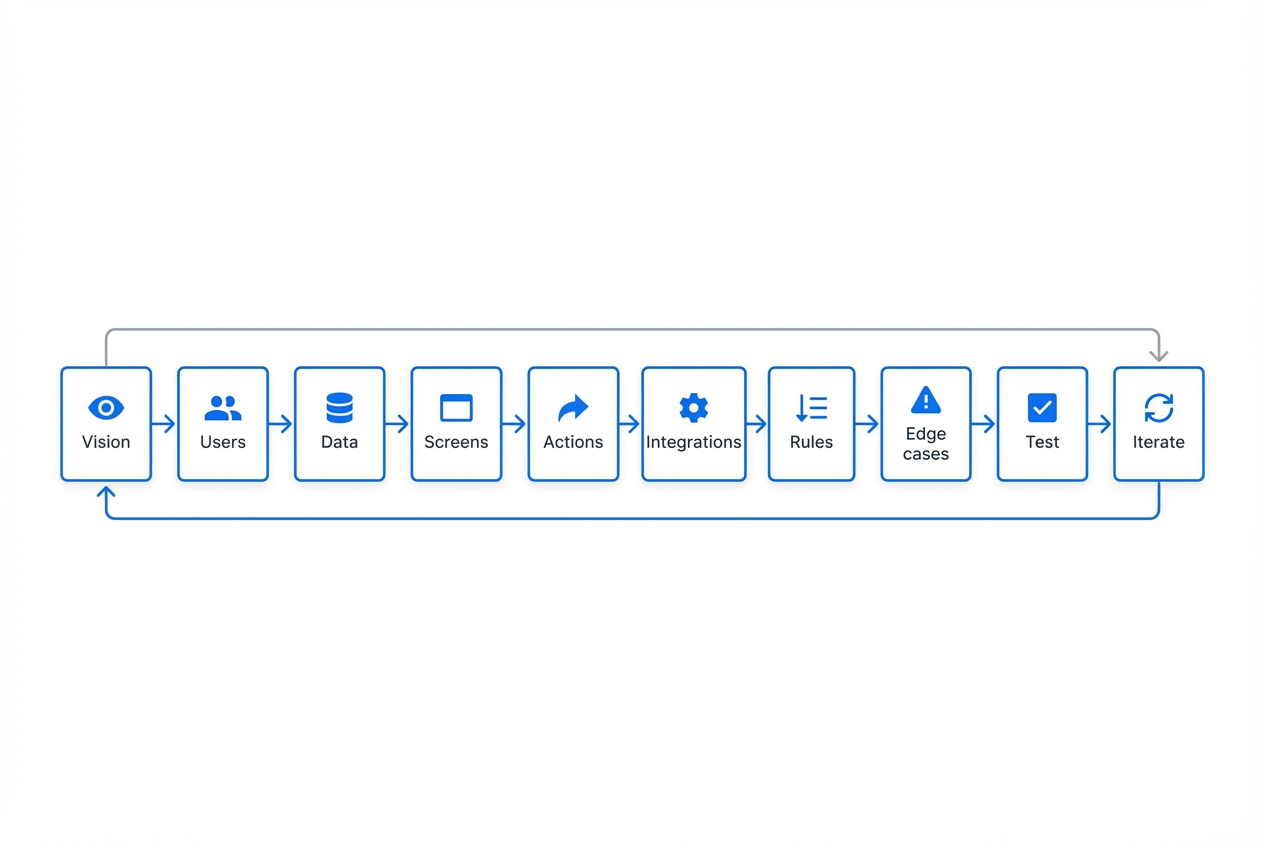
The fastest way to write better prompts is to follow the same sequence a good product builder would follow:
-
Vision: What outcome does the app create for the user?
-
Users: Who uses it, and what roles exist?
-
Data: What information is stored, and how is it related?
-
Screens: What pages exist, and what does each show?
-
Actions: What can users do on each screen?
-
Integrations: What connects to outside tools through an API (Application Programming Interface)?
-
Rules: What should always be true (permissions, validations, calculations)?
-
Edge cases: What happens when things go wrong?
-
Test and iterate: What would prove the app works?
If you want the deeper mechanics behind this, QuantumByte breaks down the idea-to-app flow in plain language in How does an AI app builder work?.
What to include in every prompt (the non-negotiables)
You will get more predictable output when your prompt consistently includes the same building blocks.
| Prompt component | What to include | Why it matters |
|---|---|---|
| One-sentence goal | "Build X so user can achieve Y" | Keeps scope tight and reduces random features. |
| Primary user roles | Admin, team member, client, viewer | Enables permissions and role-based screens. |
| Core objects (data model) | Entities, fields, relationships | Prevents "pretty UI with no database." |
| Screens and navigation | List screens + what is on each | Forces a real user flow and keeps the output anchored to how people use the app. |
| Key workflows | Create, approve, schedule, invoice, export | Ensures the app does useful work end-to-end. |
| Rules and constraints | Validations, required fields, limits | Reduces broken states and messy data. |
| Edge cases | Empty states, errors, duplicates, retries | Makes the build usable in the real world. |
| Output format | Ask for tables, JSON, screen specs, acceptance criteria | Helps the AI produce build-ready structure. |
When you are building software to scale a service, these components also make it easier to turn your expertise into a repeatable product. This ties directly into the mindset in productization strategy for small business.
How to write AI app builder prompts that generate usable apps
The steps below are intentionally simple. The goal is momentum. You want a prompt you can write in 10 to 20 minutes that produces a build you can iterate.
Step 1: Start with a single job-to-be-done
Write one sentence that describes the job the app must do.
This step matters because it gives the AI a stable target. When the target is clear, the builder can infer the minimum data objects, screens, and workflows needed to get a real outcome. You also get a clean way to test the result. If the app cannot do the job end-to-end, you know exactly what to fix.
-
Good outcome: The AI anchors on an outcome and proposes the minimum screens and data needed.
-
Bad outcome: The AI tries to recreate an entire platform.
Example:
"Build an intake and project tracker so a small agency can turn a lead into a scoped project with tasks and status updates."
Step 2: Define roles and permissions early
Most business apps break because permissions were an afterthought.
Include:
-
Who logs in: Client, internal admin, contractor.
-
What each can see: Their own projects vs all projects.
-
What each can do: Create, edit, approve, export.
Write it plainly:
-
Admin: Can see all records and manage users.
-
Team member: Can edit tasks and update status.
-
Client: Can view their project, upload files, and approve milestones.
Expected outcome: The builder generates role-based screens and keeps customer data separated, which reduces rework later.
Step 3: Specify the data objects like a spreadsheet
If you can name the columns, you can build the app.
Use a short data section like this:
-
Lead: name, email, company, source, notes, status
-
Project: clientId, name, scopeSummary, startDate, dueDate, status
-
Task: projectId, title, ownerId, dueDate, status, estimateHours
-
File: projectId, uploadedBy, url, type, createdAt
Tip: If you already run this process in sheets, you are halfway done. You are just turning rows into records.
Expected outcome: You get a real database shape (objects, fields, relationships) that the AI can connect across screens and workflows.
Step 4: Describe screens as "what I need to see and do"
Instead of saying "dashboard," list the screens and what they contain.
-
Dashboard: Today's priorities, overdue tasks, projects at risk.
-
Projects list: Filter by status, search by client.
-
Project detail: Scope summary, timeline, tasks, files, activity log.
-
Client portal: Milestones, approvals, file uploads, messages.
Expected outcome: The app output matches your real user flow, with the right fields and actions on each screen.
Step 5: Write 3 to 5 critical workflows in plain language
Workflows are where value lives. They should read like a story.
Example workflows:
-
Lead to project: When admin marks a lead as "Won," create a project, generate default tasks from a template, and notify the assigned team member.
-
Status updates: When a task is marked "Done," update project progress and log the event in an activity feed.
-
Client approval: Client can approve a milestone. Once approved, lock the milestone fields and notify the team.
Expected outcome: You get end-to-end behaviors that actually run the business process, not just isolated pages.
Step 6: Add rules and validations (your guardrails)
Rules are how you keep the AI from generating a demo that falls apart.
-
Required fields: A project must have a client and due date.
-
State transitions: A task cannot move from "Backlog" to "Done" without an owner.
-
Permissions: Clients cannot view internal notes.
Expected outcome: The app behaves consistently, prevents bad data, and avoids the common "it worked in the demo" trap.
Step 7: Force a structured output
Even if the builder generates the app directly, structured output keeps the AI honest.
Ask for:
-
A data model table: Objects, fields, and relationships.
-
A list of screens: Screen names plus fields, actions, and navigation.
-
A list of workflows: Triggers, steps, and what changes in the database.
-
Acceptance criteria: Simple "Given/When/Then" statements that you can test.
Expected outcome: You receive build-ready structure you can validate quickly, iterate on cleanly, and hand to a developer if needed.
This mirrors the structured prompting advice you will see in the Google Gemini prompting strategies.
Copy-and-paste prompt templates (edit the brackets of course)
These templates are designed to produce predictable, buildable output in most AI app builders.
Template A: Internal operations app
You are an expert product manager and senior full-stack engineer.

Goal:
Build an internal web app for [business type] to [primary outcome].

Users and roles:
- Admin: [capabilities]
- Staff: [capabilities]
- Optional: Client/Partner: [capabilities]

Data model (objects and fields):
- [Object 1]: [field, field, field]
- [Object 2]: [field, field, field]
Relationships:
- [Object 2] belongs to [Object 1]

Screens:
1) Dashboard: [widgets, filters]
2) [List screen]: [columns, filters, actions]
3) [Detail screen]: [sections, actions]
4) Settings: users, roles, templates

Workflows:
1) [Workflow name]: When [trigger], then [actions], with validations [rules]
2) [Workflow name]: When [trigger], then [actions]

Rules and constraints:
- Permissions: [rule]
- Required fields: [rule]
- Status logic: [rule]

Edge cases:
- Empty state behavior for lists
- Handling duplicates for [object]
- Error messages for invalid inputs

Output format:
Return:
1) A data model table
2) Screen-by-screen spec
3) Workflow spec
4) Acceptance criteria in Given/When/Then
Template B: Client portal (simple, high trust)
Build a client portal for [service].

Must-have outcomes:
- Clients can see progress and next steps without emailing us.
- Clients can upload files and approve milestones.

Roles:
- Admin (internal)
- Client (external)

Data:
- Client
- Project
- Milestone (status: Not started, In progress, Needs approval, Approved)
- Message
- File

Screens:
- Client login
- Client dashboard: active projects, milestones needing approval
- Project view: timeline, milestones, files, messages
- Admin view: all clients/projects, manage milestones, send messages

Rules:
- Clients only see their own projects.
- Once a milestone is Approved, lock edits except Admin can unlock.

Output format:
Provide a screen list and the exact fields/actions on each screen.
Template C: MVP (Minimum Viable Product) spec that resists scope creep
Help me design a Minimum Viable Product for [app idea].

Context:
Target user is [who]. The paid problem is [pain].

Scope boundaries:
Include only what is needed for the first paid use case.
Explicitly exclude anything that resembles [excluded features].

Deliverables:
1) MVP feature set
2) Data objects
3) Screens
4) 3 core workflows
5) What to postpone to v2
Quick picker: which template to start with
| If you are building... | Start with | Why |
|---|---|---|
| A back-office tool to save time | Template A | You need data + workflows more than fancy UI (User Interface). |
| A portal clients will log into | Template B | Permissions and "what clients can see" is everything. |
| A new product idea | Template C | It keeps you focused on the first paid outcome. |
How to test and iterate without losing control
Iteration is where founders win. The trick is to iterate on one dimension at a time.
-
Change one thing per pass: If you rewrite the whole prompt, you will not know what improved the output.
-
Add missing details as patches: Append a small section like "Update: Add a Project template system" rather than rewriting everything.
-
Use real examples: Paste in a realistic record (a real client name removed, but real-shaped data). Models respond better to concrete inputs.
A simple loop that works:
- Generate the first spec or app.
- Run a "day in the life" scenario (new lead, new project, client approval).
- Note where you hit friction.
- Patch the prompt with the missing rule, field, or screen.
This aligns with OpenAI's guidance on being explicit and iterating with evaluation in their prompt engineering guide.
Common mistakes (and the exact fix)
These are the mistakes that quietly kill momentum.
-
Mistake: Asking for "a CRM" or "an Airbnb clone": The AI copies patterns you may not want and bloats scope. Replace it with your one-sentence job-to-be-done and 3 workflows.
-
Mistake: Forgetting permissions until the end: You get a build that leaks data across customers. Add roles in the first 10 lines of the prompt.
-
Mistake: No data model: You get screens with placeholder fields that do not connect. Add objects and fields, like a spreadsheet.
-
Mistake: Vague success criteria: You cannot tell if the output is done. Add acceptance criteria and a scenario test.
If your goal is operational leverage, not just a prototype, it also helps to think in terms of automation. The mindset shift is covered well in How to automate business processes.
Turn prompts into build-ready specs with QuantumByte
If you are writing prompts and thinking, "I know what I mean, but I cannot express it cleanly," it is likely because the idea needs more structure before it is buildable.
QuantumByte is designed for this exact moment. They turn your idea into structured documentation that an AI can use to generate an app. That structure reduces rework.
A practical way to use it:
-
Start with your raw prompt: Get your thoughts out quickly.
-
Convert it into a Packet: Turn it into roles, objects, screens, workflows, and rules.
-
Build from the Packet: Use it as the source of truth as you iterate.
If you want to try that flow, start here.
When AI gets you 80% there (and what to do next)
Sometimes the AI builder will generate most of what you need. Then you hit a wall. It might be a tricky integration, complex permissions, or a workflow that needs true custom logic. That is normal.
In our experience, the best approach is to keep your prompt as the product spec. Then bring in expert builders to finish the last mile without restarting. QuantumByte is built for that combination: AI-first prototyping, then an in-house team to push the app across the finish line when the build needs deeper engineering.
Putting it all together
You now have a repeatable way to write ai app builder prompts that produce real systems:
-
Step 1: Start with one job-to-be-done.
-
Step 2: Define roles and permissions early.
-
Step 3: Treat your data model like a spreadsheet.
-
Step 4: Specify screens as "what I need to see and do."
-
Step 5: Write workflows like short stories.
-
Step 6: Add rules, edge cases, and a required output format.
-
Step 7: Iterate using one change per pass.
Your prototype is closer than you think!
Frequently Asked Questions
How long should AI app builder prompts be?
Long enough to remove ambiguity. For most business apps, that means a short goal statement plus roles, a basic data model, 5 to 10 screens, and 3 to 5 workflows. If you cannot describe the data and workflows yet, you are still in idea mode.
Should I include the UI design in my prompt?
Include layout and components only where it affects usability or workflow. Otherwise, focus on screens, fields, and actions. You can always iterate the look after the system works.
What is the fastest way to improve a weak prompt?
Add structure. Specifically: roles, a data model, and forced output format. Clear structure usually improves output more than adding more adjectives.
How do I prompt for integrations like Stripe or Google Calendar?
Name the integration and describe the exact trigger and result.
Example: "When an invoice is marked Paid in Stripe, set the project billingStatus to Paid and email the client a receipt."
What if the AI builder keeps inventing features I did not ask for?
Add scope boundaries and exclusions.
Example: "Do not add chat, social features, or analytics dashboards unless explicitly requested. Ask clarifying questions if needed."
New 2026 AI builder comparisons
For the next step after prompt design, compare AI app builder features vs ease of use and the best overall AI app builder for developers in 2026.