
Manual data entry is the silent killer of HR productivity. It creates rework, disputes, and that familiar end-of-pay-period panic. In payroll, even small input mistakes can snowball fast. Many teams cite manual payroll error rates in the low single digits up to the high single digits, and organizations like the American Payroll Association exist for a reason: payroll is detail-heavy, and the cost of "almost right" is real.
Time tracking payroll automation fixes the core problem by creating a direct, digital link between the employee's punch-in and the final paycheck. Hybrid work, field teams, and stricter labor rules have made real-time synchronization less of a luxury and more of a survival move.
In this guide, you'll walk through the workflow required to automate payroll cycles end to end. You'll learn how to capture time accurately, apply overtime logic, and sync approved hours into your payroll provider. By the end, you'll have a blueprint for a touchless payroll system that supports AI-driven efficiency without losing control. For a foundational understanding of payroll systems, see payroll automation.
Prerequisites for Successful Automation
Before you touch settings or integrations, lock in these foundations:
- Time Capture Tool: Centralized digital time-capture tool (mobile, kiosk, or web) so everyone clocks time the same way.
- Overtime and Rounding Rules: Clearly defined rules (including state-specific needs) so your system can calculate pay the same way every time.
- Job Codes and Costing Map: Mapping of job codes, departments, locations, or clients so labor cost reporting is accurate.
- Payroll Compatibility: API or CSV-compatible payroll software (for example ADP, Gusto, QuickBooks) so hours can move without re-typing.
- Approval Hierarchy: Documented approval path so timesheets do not stall at the finish line.
If you are missing one of these, automation still "works," but it turns into automated chaos. The win comes from clean inputs, clear rules, and predictable approvals.
Why Implement Time Tracking Payroll Automation Now?
Automating the bridge between hours worked and dollars paid solves four critical business challenges:
- Eliminating Human Error: Removing the manual middle step cuts typos, copy/paste mistakes, and formula errors that lead to underpayments or overpayments. Less correction work also means fewer awkward employee conversations.
- Accelerating Cycles: Teams that automate often move from "days of chasing and fixing" to "minutes of review and approval." When payroll stops being a fire drill, you get your Fridays back. If you are building broader automation across the business, these time savings stack fast.
- Granular Job Costing: When time is tagged to projects, locations, or cost codes at the point of capture, you can see labor costs in near real time. That is the difference between guessing profitability and managing it.
- Instant Approvals: Managers can approve from a phone, and exceptions can route automatically. That removes last-minute bottlenecks right before payroll cutoff.
Step 1: Digital Time Capture and Geofencing
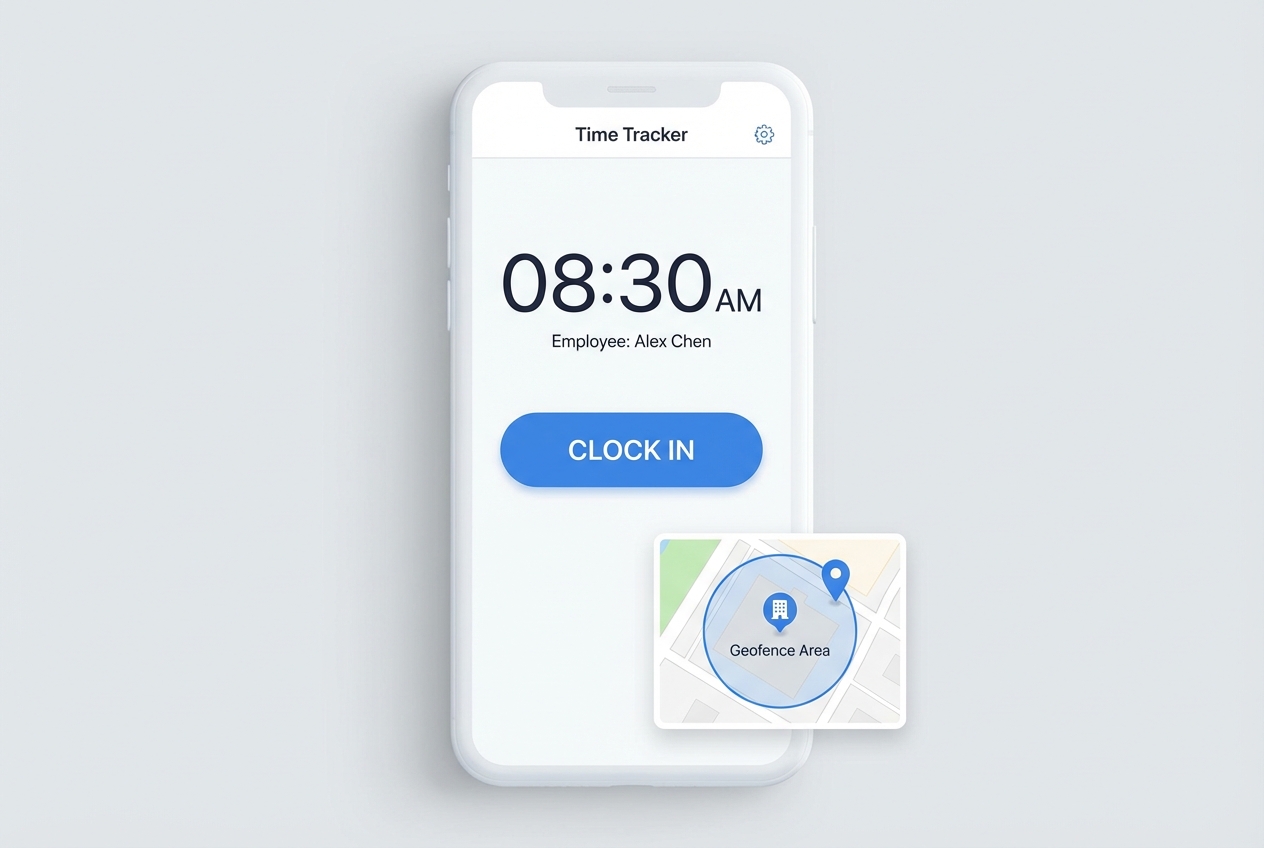
Transition from paper or spreadsheets to a single source of truth.
1A) Choose one capture method and standardize it
Pick the simplest option that fits your team, then commit to it:
- Mobile app: Best for field teams and hybrid workers. Employees clock in from their phone.
- Web clock: Great for desk-based teams.
- Kiosk tablet: Useful for shift work and shared devices.
Consistency matters more than features. If half your team uses a sheet and half uses an app, your "automation" becomes a reconciliation project.
1B) Define what you are actually capturing
At minimum, capture:
- Start time and end time: The core payroll input that becomes payable hours.
- Breaks: Either employee-entered or policy-based deductions (with an exception path).
- Job or project code: Even a simple dropdown improves costing and reporting.
- Work location (optional): Helpful for multi-site businesses and local labor rules.
1C) Add geofencing for location trust (if you need it)
Geofencing uses GPS boundaries to confirm someone is on-site when they clock in. This is useful when:
- Job-site crews: You have teams moving between locations and need time tied to the right site.
- Client proof: Clients require verification that work happened on-site.
- Compliance needs: Policies or contracts require location-based confirmation.
If you already have security badges or door access logs, you can also pull those signals into your time system through integration work. Some teams do this so existing infrastructure becomes part of your automated workflow.
Run the new time capturing in one department for two payroll cycles. Take that time to fix friction points before expanding.
Step 2: Automating Validation and Overtime Rules
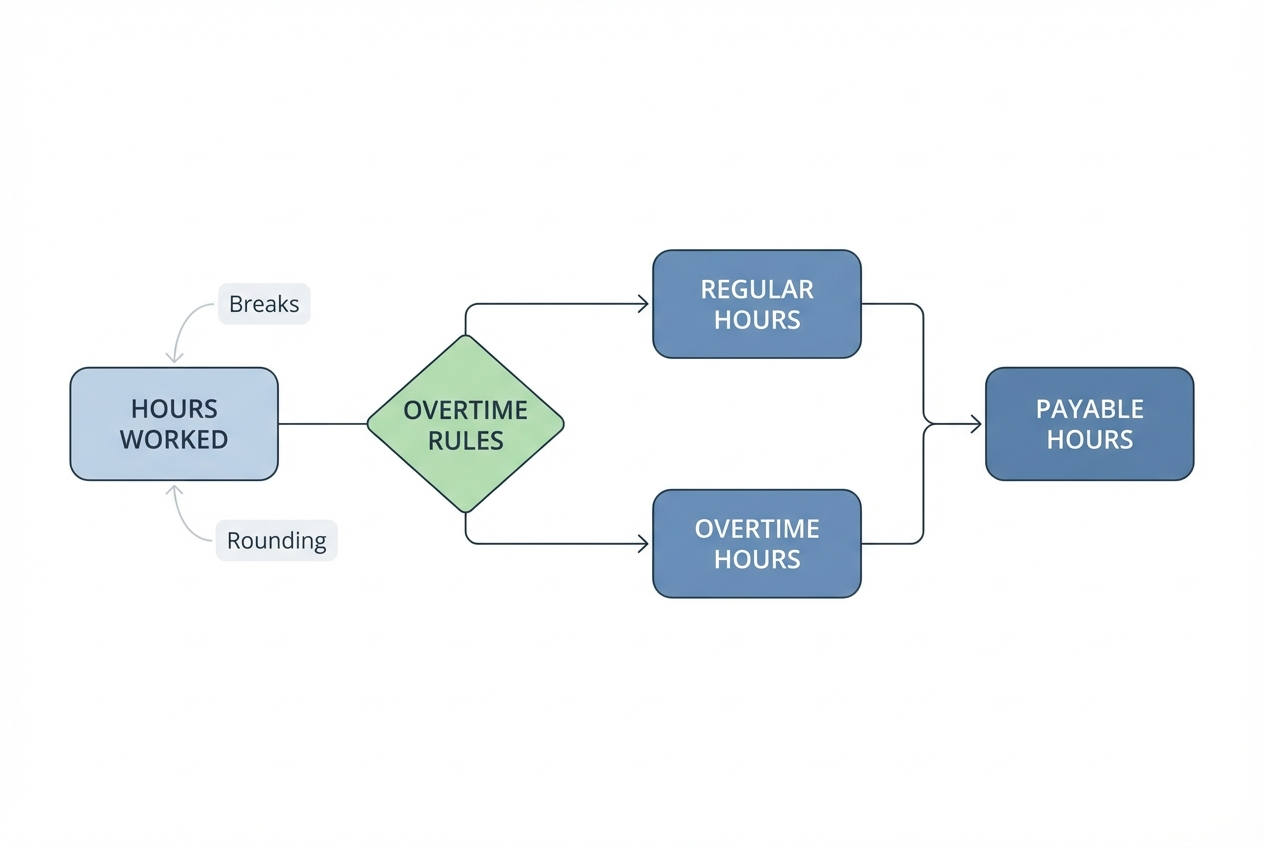
Let the software handle the math, and reduce compliance risk.
Overtime rules can get complex fast. The baseline U.S. standard under the Fair Labor Standards Act (FLSA) is overtime pay for hours worked over 40 in a workweek at not less than time and one-half the regular rate. But, states and local rules can add stricter requirements. California, for example, commonly requires daily overtime for anything over 8 hours in a workday.
You do not need to memorize every law. Instead, set up rules that match your reality, then run payroll with fewer surprises.
2A) Set validation rules first
Validation rules catch issues early, before they hit payroll:
- Missed punch detection: Flags clock-ins without clock-outs so employees fix them while memory is fresh.
- Early or late punch alerts: Highlights punches outside scheduled windows so managers can verify what happened.
- Unauthorized overtime flags: Marks overtime that needs manager review before it becomes payable.
- Break compliance checks: Spots short or missing breaks based on your policy, which reduces risk and disputes.
- Duplicate punch prevention: Stops accidental double clock-ins that inflate hours.
2B) Configure overtime, rounding, and breaks with intent
This is where many teams automate the wrong behavior by accident.
- Overtime logic: Encode the rules you actually pay by (weekly, daily, double-time conditions, union rules). If you pay different rates by role or client contract, capture that with pay codes.
- Rounding rules: If you round, document it, apply it consistently, and confirm it is allowed where you operate. Rounding that only benefits the company creates distrust fast.
- Break deductions: If you auto-deduct lunch, build a simple exception workflow so employees can confirm or edit when lunch was not taken.
If you are not sure how to structure rules, write them as plain English first. Then translate them into system rules. This is the thinking behind business process optimization: make the process clear before you automate it. For more on effective scheduling that feeds into time tracking, see employee scheduling software.
2C) Handle the "real-world" edge cases upfront
Most payroll pain comes from the same handful of edge cases. Decide what should happen before the first automated run:
- Split shifts: If someone works 7–10am and 4–8pm, do you treat that as one day for daily overtime calculations?
- Travel time: If you pay for travel between job sites, how is it captured and coded?
- On-call time: If you compensate for being on-call, is that a separate pay code?
- Training and meetings: Do these hours have different costing codes, even if pay rate is the same?
- Overnight shifts: If a shift crosses midnight, how do you attribute hours to a workday for daily overtime states?
2D) Test in "parallel" before you go fully touchless
A smart rollout is a parallel run:
- Run old and new: Process one or two pay periods using both methods.
- Compare totals: Compare regular hours, overtime hours, and exceptions.
- Review mismatches: Fix the rule, not the symptoms. If breaks are off, adjust break handling. If overtime is off, adjust overtime thresholds.
This step protects trust. Employees do not care that your system is modern. They care that their paycheck is right.
Keep rule sets as simple as legally possible. Complexity multiplies edge cases, and edge cases are where payroll trust gets damaged.
Step 3: Streamlining the Approval Workflow
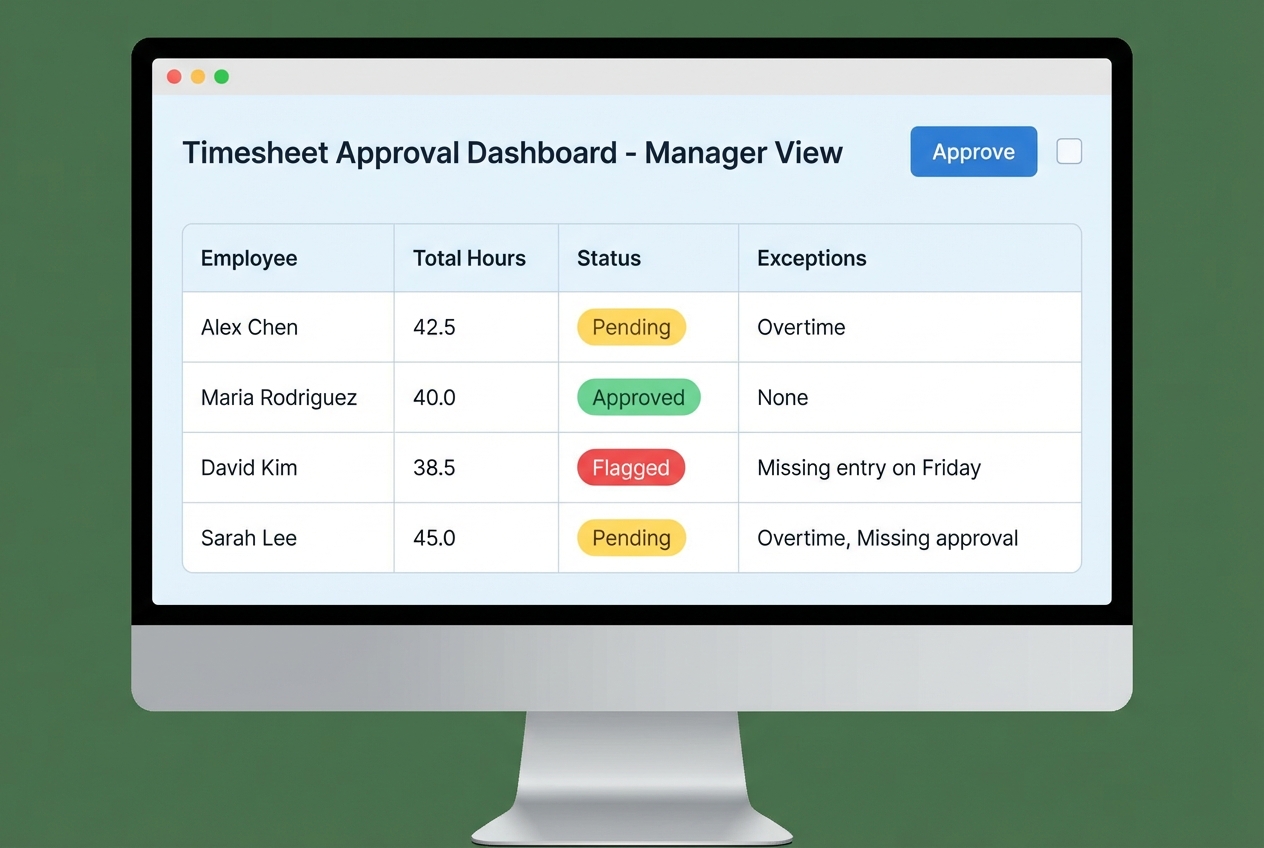
Replace email chains with automated notifications and one-click approvals.
Time tracking payroll automation breaks when approvals are slow. You can have perfect time capture, but if approvals come in late, payroll still becomes a scramble.
3A) Build an approval hierarchy
Start with one of these patterns:
- Single manager approval: Best for small teams. One approver per employee, simple and fast.
- Two-step approval (manager + payroll): Best when you need a final payroll review for compliance and consistency.
- Project-based approval: Best for agencies, construction, and services teams where project leads approve project-coded hours.
3B) Use exceptions to focus attention instead of reviewing everything
Managers get the most value by focusing on what is unusual and doing quick spot-checks of normal shifts. Configure an exceptions queue for:
- Missed punches: Anything incomplete needs a fix before payroll export.
- Overtime above threshold: Flag overtime beyond expected limits so it is reviewed early.
- Off-geofence punches: If you use location controls, flag off-site punches for confirmation.
- Manual edits beyond a limit: If someone is making many edits, that is a signal worth checking.
3C) Automate reminders that are hard to ignore
Good reminders feel supportive and respectful of attention. A simple cadence:
- Employee reminder: 24 hours before timesheets lock, so employees can correct mistakes.
- Manager reminder: 12 hours before approval cutoff, so approvals do not bottleneck payroll.
- Escalation reminder: 2 hours before cutoff, routed to a backup approver when needed.
This is where automation quietly multiplies impact. If you want a broader automation layer across your tools, workflow automation softwares can connect reminders, approvals, and handoffs so the process runs even when you are focused on customers.
Step 4: Syncing Data via Payroll Export or API
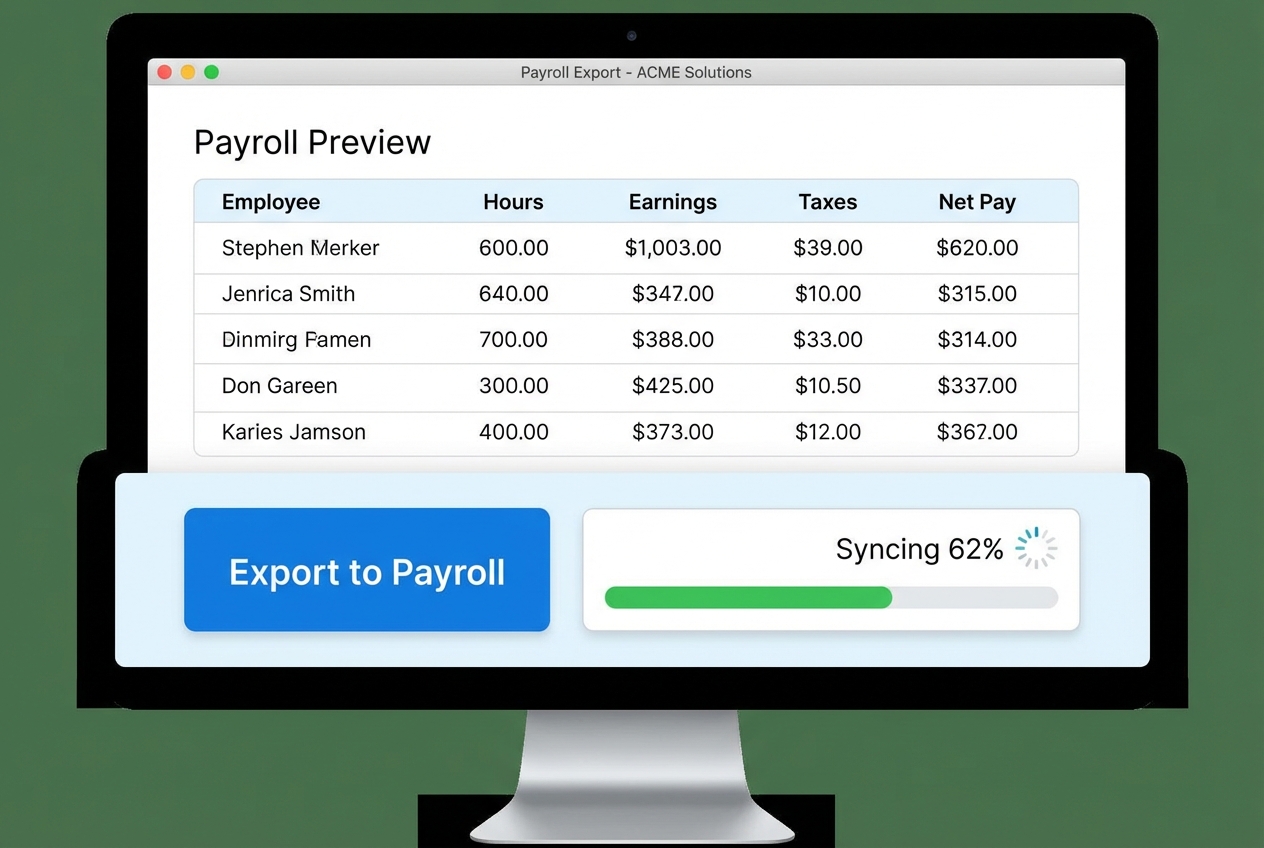
Transfer approved time data into payroll with a review step that keeps you safe.
There are two common ways to sync time tracking data into payroll.
4A) Option 1: Direct API integration (best when available)
Many modern tools offer direct sync to payroll systems. For example, QuickBooks Time and Buddy Punch both support integrations that can push approved hours into payroll workflows, depending on your stack. The upside is speed and fewer formatting problems. The risk is that field mapping mistakes move bad data faster.
For a comprehensive look at available integrations, see resources like Zapier’s Payroll Integrations or G2’s Payroll Software Directory, which can help you assess tool compatibility and automation options.
To reduce risk, confirm your mapping for:
- Employee identifiers: Use employee ID, not name, so changes do not break the sync.
- Earnings codes: Regular, overtime, double-time, and PTO should land in the correct buckets.
- Departments or classes: Needed for reporting and job costing downstream.
When done right, this kind of closed-loop workflow is what people mean by enterprise automation: fewer handoffs, fewer places for errors to hide.
4B) Option 2: CSV export and import (more manual, but reliable)
CSV is still common because it is universal and easy to audit. If you use CSV:
- Column order: Lock it, and do not change it casually.
- Employee IDs: Standardize them across systems and avoid free-typing.
- Job codes: Use dropdowns, not text entry, to keep codes clean.
- Import steps: Document the exact clicks so the process is repeatable.
4C) Do a "pre-sync audit" every pay run
Automation does not remove responsibility. It changes your job to review and control.
Your pre-sync audit should include:
- Totals check: Do total hours look normal compared to last pay period?
- Exception check: Are any flagged items still unresolved?
- New hire check: Do new employees have correct pay codes and eligibility?
- Overtime check: Does overtime align with schedules and expectations?
- PTO check: Is PTO recorded as PTO, not mixed into regular hours?
Here is a practical mapping table you can use when setting up your export or API fields:
| Time Tracking Field | Payroll Field | Why it matters |
|---|---|---|
| Employee ID | Employee ID | Prevents mismatches when names change or duplicates exist. |
| Regular hours | Regular earnings hours | Ensures baseline pay calculates correctly. |
| Overtime hours | Overtime earnings hours | Keeps overtime separate for rate and compliance reporting. |
| Job code / Class | Class / Department / Project | Enables job costing and cleaner reporting. |
| Paid time off (PTO) | PTO hours | Avoids paying PTO as regular worked time. |
When you need a custom sync (and how to move fast)
Sometimes the "native integration" is not enough. You might have:
- Multiple time sources: Kiosk plus mobile plus badge swipes, all needing a clean merge.
- Custom pay rules: Different overtime treatments by client contract or union agreement.
- Accounting requirements: Project costing must flow into accounting with strict class rules.
- Legacy systems: A homegrown tool still runs part of payroll or scheduling.
That is the moment to consider a small custom connector that sits between systems and enforces your rules. This is a great place for rapid prototyping because the workflow is clear and the ROI is immediate: fewer hours spent fixing payroll every cycle.
If this approach fits your team and you want to implement it quickly without hiring a full development team, Quantum Byte can help turn your plain-English requirements into a fully functioning internal tool in just days. Feel free to get in touch with us to explore how this could work for you.
Key Controls: Audit Trails and Security
Automation does not mean losing control. The best systems are strict where they need to be, and flexible where humans need exceptions.
- Change logs: Every edit to a timesheet should be logged with a timestamp and the user ID of the person who made the change. This turns disputes into quick answers, not long debates.
- Secure access: Use role-based access and Single Sign-On (SSO) so only authorized people can approve and export payroll. If a laptop gets compromised, payroll should not be one login away.
- Compliance storage: Maintain digital records for at least three years to satisfy U.S. Department of Labor recordkeeping expectations.
- Separation of duties: Avoid giving one person the power to edit time, approve time, and export payroll. Even in small companies, a simple split reduces risk.
If you want to go one level higher, set alerts for unusual patterns:
- Repeat manual edits: A single manager repeatedly changing time can signal training gaps or abuse.
- Frequent off-geofence punches: Can indicate a policy issue, a GPS issue, or a behavior issue.
- Overtime spikes: Sudden increases can be a staffing signal, not just a payroll issue.
The Future of Autonomous Payroll
Autonomous payroll is becoming practical because the building blocks are getting better: better time capture, better rules, better integrations, and better review tools. More businesses are moving toward payroll workflows where AI handles the easy work and humans focus on exceptions and decisions.
Starting with time tracking payroll automation is the simplest way to reclaim HR time and redirect it toward hiring, retention, and team health. For broader HR efficiency gains, explore HR automation and employee onboarding.
So what are you waiting for?
Document your rules, standardize time capture, and automate one step at a time. Once the workflow is stable, you can level up into deeper integrations and custom connectors that make payroll feel almost invisible.

