Late payments are not just annoying. They shrink your cash buffer, add stress to your week, and force you to spend prime hours doing admin instead of growth.
And it is common. A 2024 global survey by Taulia found that over half of businesses say they are paid late on average. Intuit also reports a major impact on small businesses from unpaid or overdue invoices.
Automated invoice reminders transform accounts receivable from a manual chore into a consistent, professional, self-running engine. Modern tools can even adjust timing and tone based on customer behavior, so your reminders feel human without you hovering over spreadsheets.
This guide walks you through the exact steps to configure your first automated reminder sequence, templates that get replies and payments, plus how to choose software that scales as you grow.
What Are Automated Invoice Reminders and Why Do They Matter?
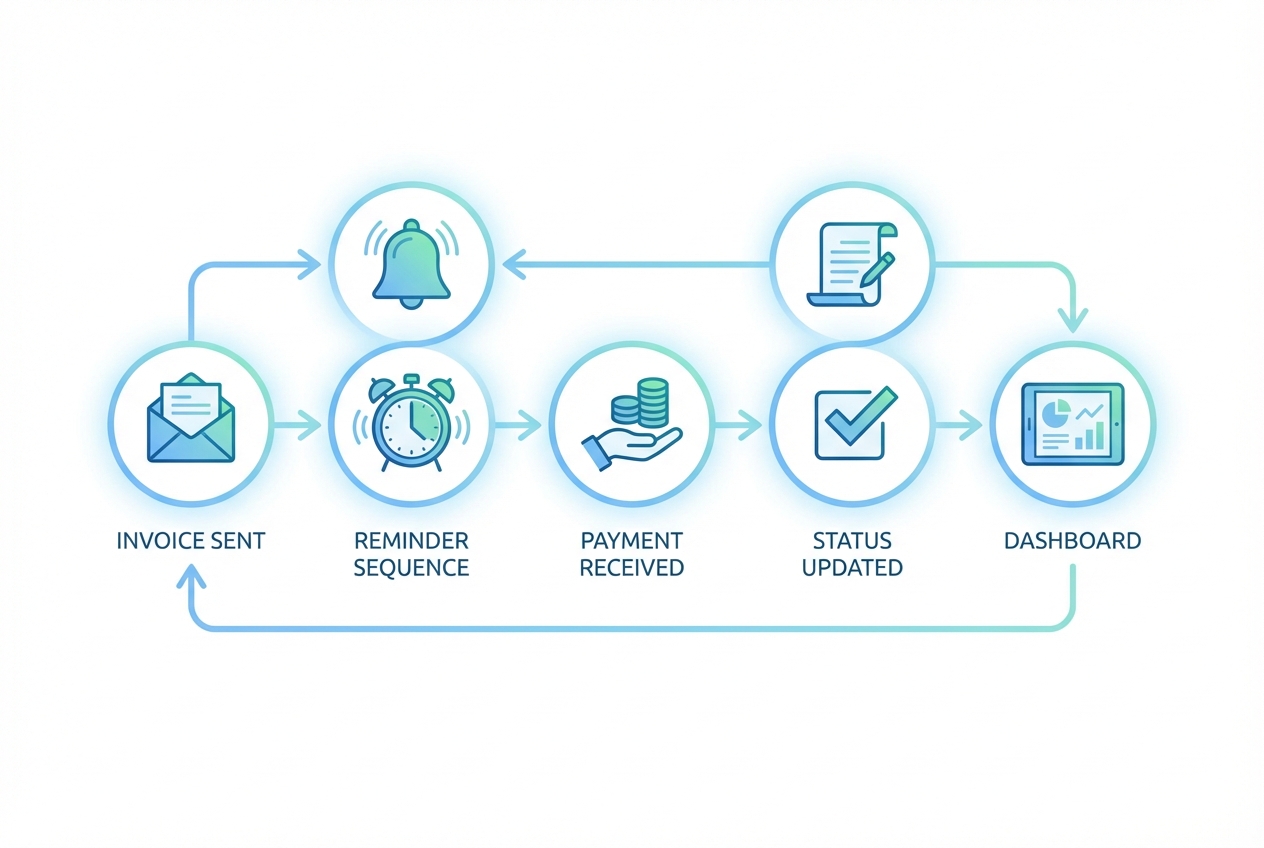
Automated invoice reminders are software-driven emails (and sometimes SMS) that notify clients about upcoming or overdue invoices at pre-set intervals.
Instead of you or your bookkeeper:
-
Checking who is overdue: Manually scanning a list and trying to remember who needs a nudge.
-
Writing follow-up emails: Recreating the same message again and again, with small edits.
-
Risking awkward errors: Accidentally reminding someone who already paid, or forgetting a key invoice.
…the system does it for you. Every time. With the right context.
Here is what you gain beyond faster payments:
-
Consistent professionalism: Your reminders show up on time with a calm, businesslike tone. You stop sounding stressed, even if cash flow is tight.
-
Error reduction: Automation reduces missed follow-ups and prevents awkward “you still owe us” emails after a client paid.
-
Scalability: You can handle 100 invoices as easily as one, and save time for higher-leverage work like process automation across the rest of your business.
Also, adding payment links matters. Chase notes that invoices paid by card can be paid four times faster than other methods in some cases. Even if your results are less dramatic, reducing friction is one of the fastest wins you can implement.
How to Set Up Automated Invoice Reminders in 5 Steps
Below is a software-agnostic process that works in QuickBooks, Xero, and most invoicing tools. The menu names differ, but the structure is the same.
Step 1: Access Your Sales or Invoicing Settings
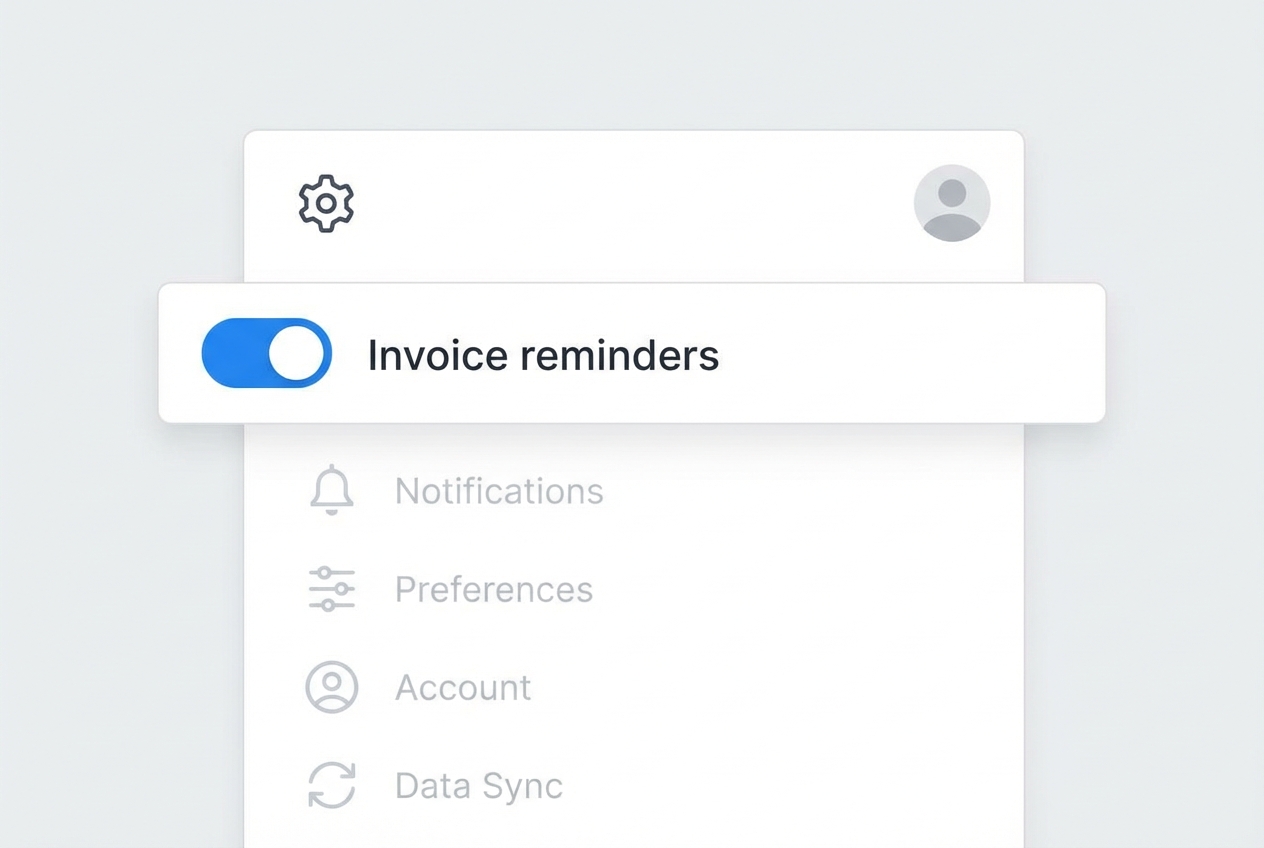
Go to your invoicing settings and find the reminders area.
In many tools, you will see options like:
-
Automatic reminders on/off: A global toggle that enables reminders for invoices.
-
Default email templates: The base message your reminders will use.
-
Schedule rules by status: Rules for “upcoming” vs “overdue” invoices.
Start by enabling reminders globally. Then refine rules after.
Quick check before you continue: make sure your invoice due dates are consistent. Automation cannot fix missing due dates.
Step 2: Configure Your Trigger Schedule
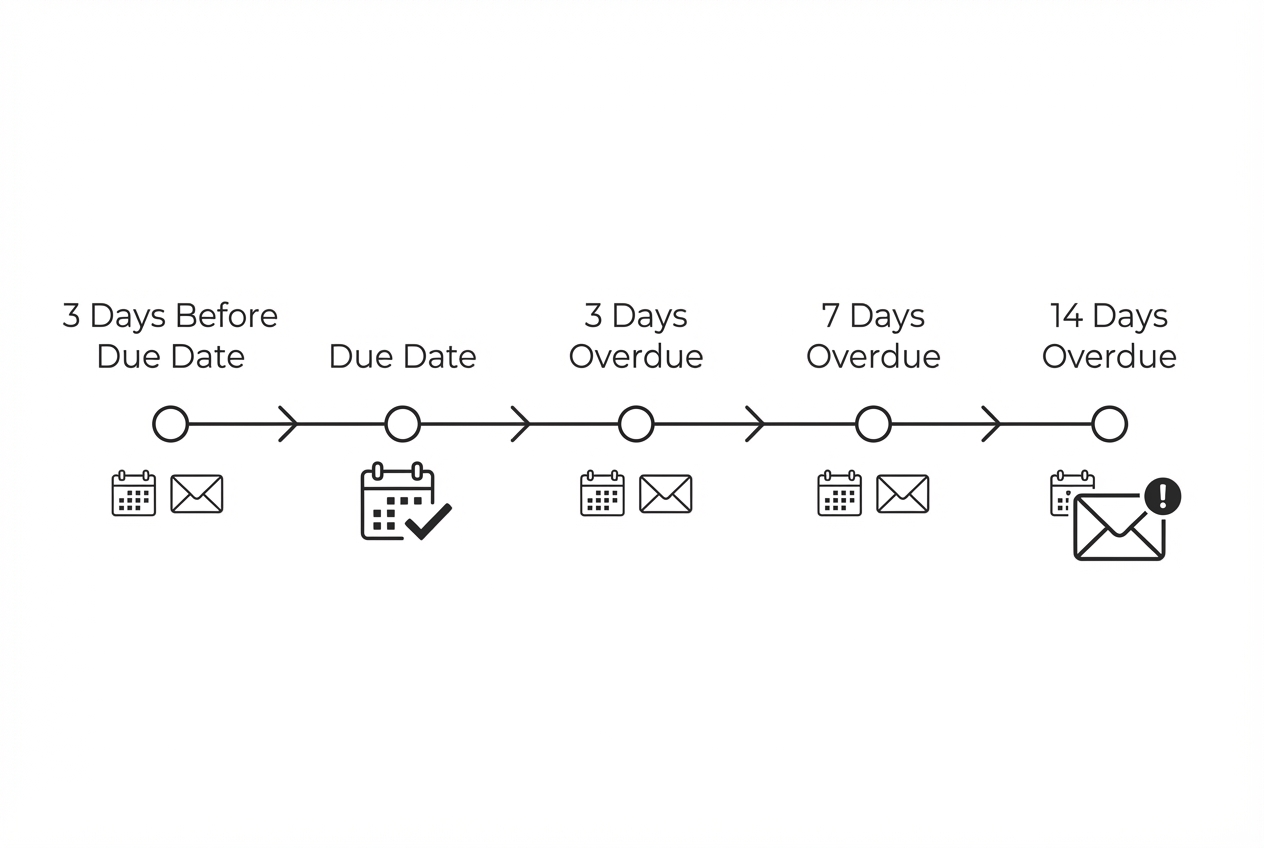
Now decide when your nudges should happen.
A strong default sequence for many B2B service businesses looks like this:
- Pre-reminder: 3 days before the due date.
- Due date reminder: On the day payment is expected.
- Overdue reminders: 3, 7, and 14 days after the due date.
You can simplify this if you want a softer system. Just remember that early reminders prevent late payments, and later reminders recover late payments.
A practical tip: if you have two very different client types (say, SMBs and enterprise procurement), use two schedules. A single reminder rhythm rarely fits both.
Suggested schedule options (pick one):
| Business type | Best-fit reminder rhythm | Why it works |
|---|---|---|
| B2B services (net 14/30) | 3 days before, due date, 7 days after, 14 days after | Keeps it professional and predictable. |
| B2C / high volume | Due date, 3 days after, 7 days after | Shorter cycle matches faster buying decisions. |
| Retainers / subscriptions | 5 days before, 1 day before, due date | Prevents missed payments and reduces churn risk. |
Step 3: Customize Your Message Templates
![Screenshot-style mock of an invoice reminder template editor showing three tabs (Friendly/Firm/Urgent), placeholder tags like [Customer Name] and [Invoice Number], and a preview pane with a “Pay now” button](https://s3.fluidposts.com/org_ZSaKaSS2hsAE9b1JbOUpiZDTj0iFhVaL/proj_019ab784-5a74-7209-b2d6-73b9da6e148f/content-image/019b8bff-e993-72b5-9e50-b75c651fdd44__019b8bff-e993-72b5-9e50-b039fef53586.jpg)
Automation only feels robotic if your templates are robotic.
Create at least three versions:
-
Friendly: Assumes they forgot.
-
Firm: Clear, direct, still polite.
-
Urgent: States consequence and next action.
Most invoicing tools support placeholders like:
-
Customer fields:
[Customer Name] -
Invoice fields:
[Invoice Number],[Invoice Total],[Due Date] -
Payment link:
[Payment Link]
Template tips that usually increase payment speed:
-
Name the invoice: Include the invoice number and due date so they can act fast.
-
Ask a simple question: “Can you confirm the payment date?” often triggers a reply even if they cannot pay today.
-
Keep it short: You want action, not a novel.
You will find copy-and-paste examples in the Best Practices section below.
Step 4: Include 'Pay Now' Functionality
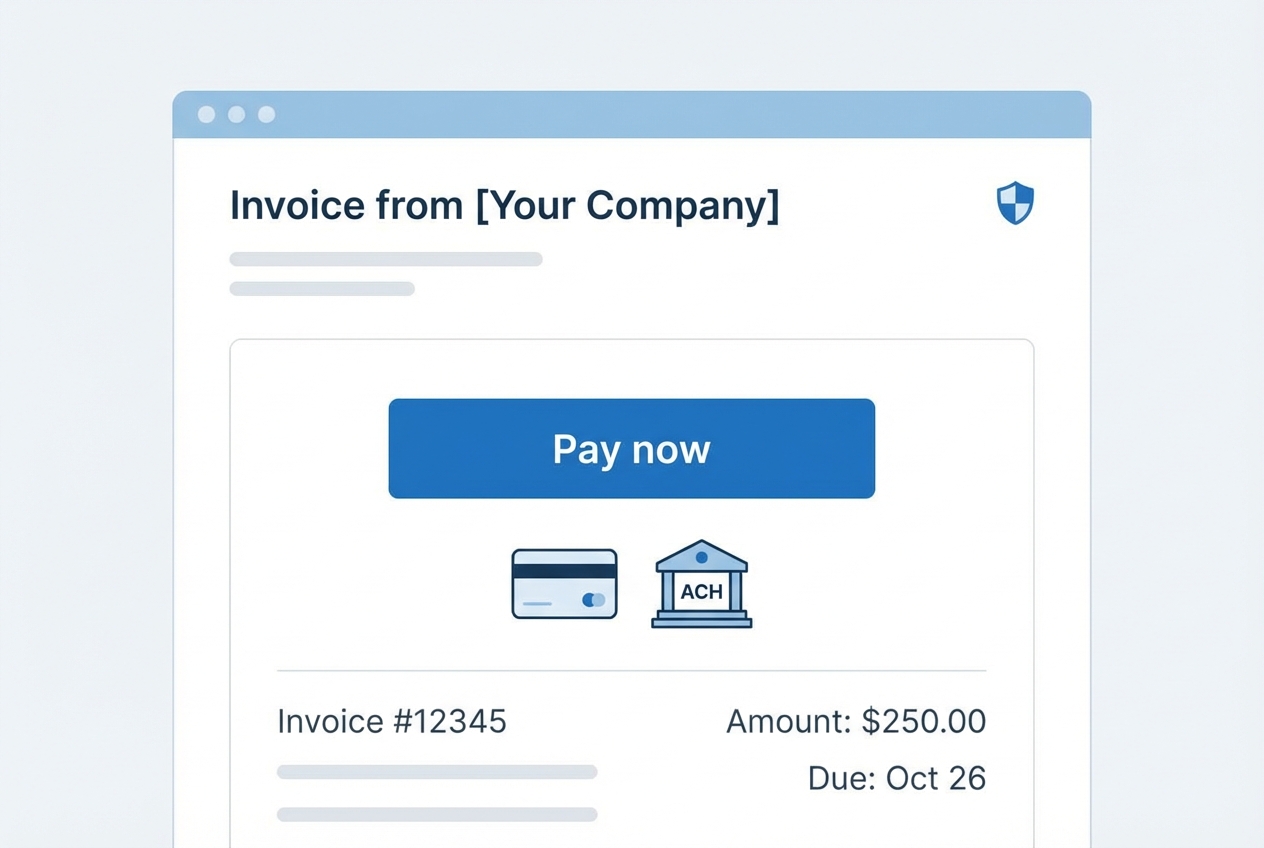
If you want faster payments, reduce friction.
Every reminder should include a direct payment link. Preferably with multiple options (card, ACH, bank transfer), depending on your region and clients.
Chase highlights that giving customers simple digital ways to pay can speed up collections, including card payments in certain scenarios. Source: Chase Invoicing.
Payment-link checklist:
-
One-click access: The link should go directly to the invoice payment screen, not a generic portal login.
-
Mobile friendly: Clients often pay from their phone between meetings.
-
Fast confirmation: Your system should mark invoices as paid quickly to stop follow-ups.
Step 5: Set Exclusion Rules
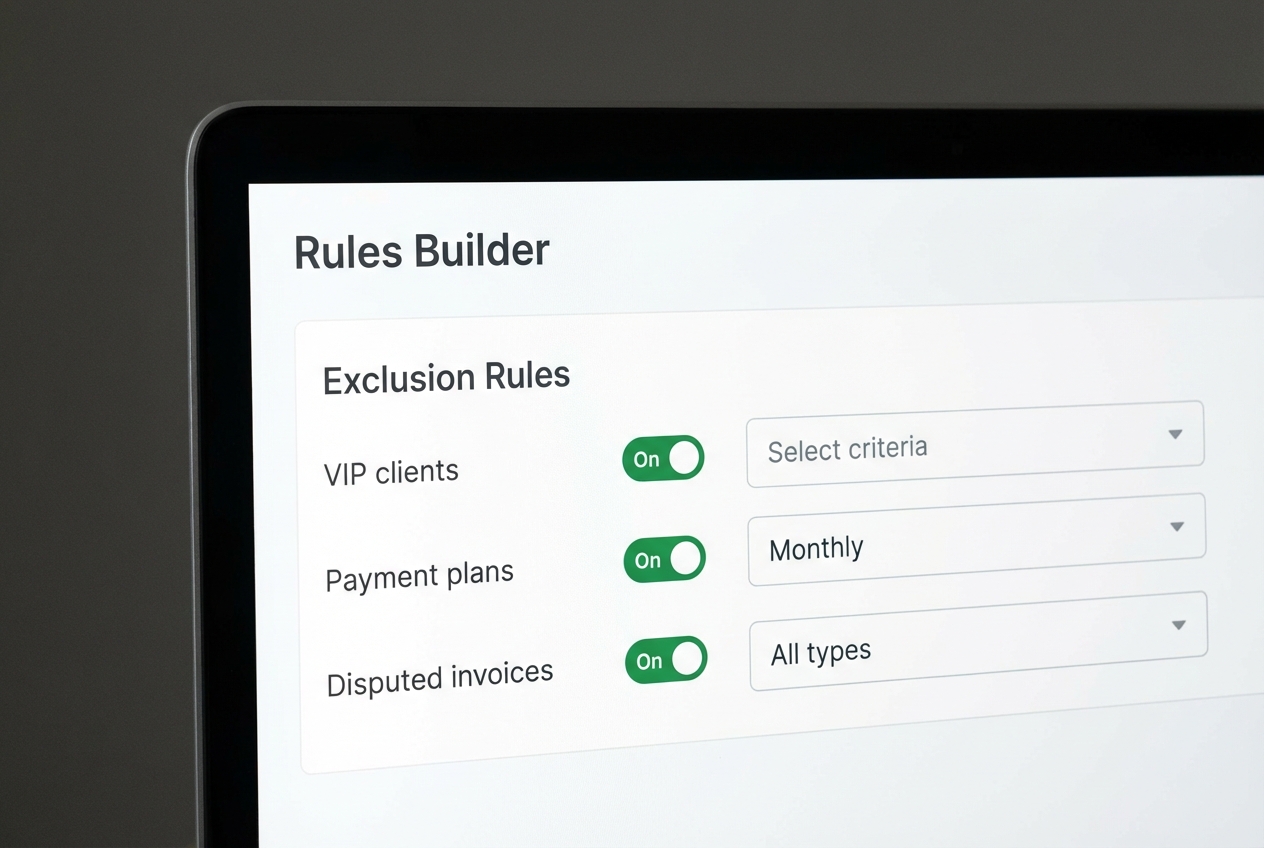
Automation is powerful. But it should still respect your relationships.
Create rules so certain invoices or clients do not get automated invoice reminders, such as:
-
VIP clients: Accounts you handle personally for relationship reasons.
-
Payment plans and milestones: Invoices that follow a different cadence.
-
Disputed invoices: Anything under review should not get automated pressure.
-
Special terms: Net 60, procurement workflow, or required PO steps.
Practical rule: if an invoice is more than 30 days overdue, stop purely automated nudges and trigger a human step (call, personal email, or escalation workflow).
Best Practices for Automated Invoice Reminder Templates
Great reminders are clear, calm, and easy to act on. They do not guilt-trip. They do not ramble. They make payment the obvious next step.
Use these best practices when you write your templates:
-
Subject lines: Include the invoice number and the timing so it is instantly understood (example: “Invoice #1234 due tomorrow” or “Invoice #1234 is now overdue (7 days)”).
-
The tone shift: Change tone as invoices age so the message matches urgency (friendly first, firm next, urgent last).
-
Mobile optimization: Assume they are reading on a phone, so keep paragraphs to 1 to 3 lines and place the payment link near the top and again at the bottom.
Copy-and-paste templates (edit to match your voice)
Friendly (3 days before due date)
Subject: Invoice #[Invoice Number] due on [Due Date]
Body:
Hi [Customer Name],
Quick reminder that invoice #[Invoice Number] for [Invoice Total] is due on [Due Date].
You can pay here: [Payment Link]
If you have any questions, reply to this email and I will help.
Firm (7 days overdue)
Subject: Past due: Invoice #[Invoice Number] (due [Due Date])
Body:
Hi [Customer Name],
Invoice #[Invoice Number] for [Invoice Total] was due on [Due Date] and is still showing as unpaid.
Please submit payment here today: [Payment Link]
If payment has already been sent, reply with the payment date so we can update our records.
Urgent (14+ days overdue)
Subject: Action needed: Invoice #[Invoice Number] is 14 days overdue
Body:
Hi [Customer Name],
Invoice #[Invoice Number] is now 14 days overdue. Please process payment today: [Payment Link]
If there is an issue, reply by [Date] so we can agree on next steps. Otherwise, we may need to pause ongoing work until the balance is cleared.
Track results in 10 minutes a week
Automation is not set-and-forget. It is set-and-improve.
Pick one day each week and check three numbers. You will know fast if your reminder sequence is working, and where it needs tuning.
| Metric | What “good” looks like | What to change if it is not improving |
|---|---|---|
| % paid before due date | Trends up over time | Add a pre-reminder (3 to 5 days before) and make the subject line clearer. |
| Days overdue (average) | Trends down over time | Tighten the 7-day message, and include a simple “confirm payment date” question. |
| Disputes triggered by reminders | Stays low and stable | Add exclusions for disputed invoices and include a “reply if there is an issue” line earlier. |
When you think about your broader digital transformation strategy, this is the pattern you want everywhere: clear rules, good messaging, and automation that protects your time.
Top Tools for Automating Your Accounts Receivable
Most accounting platforms include basic automated invoice reminders. The difference is how much control you get, and how far you can take it when you want multi-step workflows.
Here is a practical comparison:
| Tool | Best for | Strengths | Trade-offs |
|---|---|---|---|
| QuickBooks Online | Small businesses that want all-in-one accounting | Solid invoicing, built-in reminders, widely used | Advanced workflows can feel limited without add-ons |
| Xero | Businesses with multi-step invoicing needs | Strong integrations, good automation options | Some features depend on apps in the ecosystem |
| QuantumByte (custom workflow) | Teams that want reminders to connect to the rest of the business | You can build a system that matches your exact process, and connect reminders to CRM, projects, support, and more | Requires setup effort, but it scales cleanly |
If all you need is basic reminders, QuickBooks or Xero will do the job.
Quantum Byte makes the most sense when you want automated invoice reminders to become part of a larger cashflow engine, for example:
-
Adaptive reminder timing: Messages adjust based on payment history, engagement, or past delays.
-
CRM task creation: High-risk accounts trigger tasks for your team (or you) to step in at the right time.
-
Operational enforcement: Work can pause automatically when invoices hit a threshold, based on the rules you set.
-
Cashflow forecasting dashboards: Reminder and payment data feeds forecasts so you can spot cash gaps earlier.
That is the kind of AI-driven automation that buys back your time and reduces stress, while keeping your process consistent.
If you want to map your ideal reminder system and turn it into an app fast, you can start with Quantum Byte’s AI app builder and then extend it with human developers if needed.
For more context on where finance tools are heading, this is also worth reading: AI-driven finance tools.
Frequently Asked Questions
How many invoice reminders should I send?
A standard sequence is 3 to 5 reminders.
A balanced approach for many service businesses is:
-
Early nudge: 3 days before.
-
On-time prompt: On the due date.
-
Follow-up: 7 days after.
It is persistent, but still respectful.
Can I automate reminders for overdue invoices only?
Yes. Most platforms let you trigger automated invoice reminders only when an invoice status changes to Overdue.
This is useful if you have a very relationship-driven brand and want to keep pre-due nudges manual.
Will my customers know the reminders are automated?
Not if you do it right.
Use real language, short messages, and placeholders like customer name and invoice number. The email should read like something you would send personally.
Is it better to send reminders via email or SMS?
Email is the default for B2B invoicing. It is searchable, easy to forward, and fits finance workflows.
SMS can be powerful for certain businesses because open rates can be extremely high. Gartner notes that various sources report SMS open rates as high as 98% in some contexts. Source: Gartner on SMS marketing.
If you have repeat customers, a multi-channel approach (email first, SMS later for overdue invoices) can increase recovery.
Can I add late fees to automated reminders?
Yes, in many tools you can configure late fees so the invoice total updates after a threshold. Then the updated amount is referenced in the next reminder.
Just be sure your contract and invoice terms clearly state the late fee policy before you enforce it.

